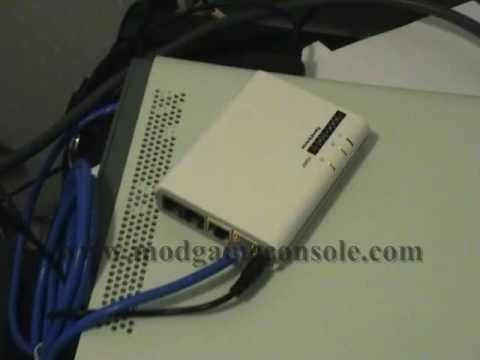
Configuring Router for Xbox Console: A Comprehensive Guide
Are you tired of encountering lag, disconnections, or other network issues while playing Xbox games? Configuring your router for your Xbox console can significantly improve your gaming experience. In this article, we will walk you through the steps to configure your router for your Xbox console, ensuring a seamless and stable online gaming experience.
Why Configure Your Router for Xbox Console?
Configuring your router for your Xbox console is essential for online gaming. It involves setting up your network to allow your Xbox console to communicate with other devices and servers on the internet. This setup is particularly important for online gaming, as it helps to improve connection stability and speed, reducing lag and disconnections.
Understanding Port Forwarding
Port forwarding is a process of configuring your network router to direct internet traffic to your Xbox console. This setup is necessary for online gaming, as it allows your Xbox to communicate with Xbox Live servers and other Xbox consoles worldwide. Port forwarding involves directing traffic to specific ports on your Xbox console, which is connected to the same local network.
How to Configure Your Router for Xbox Console
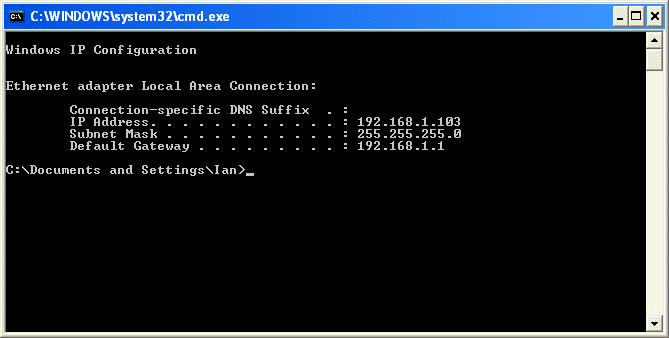
- Check Your Router's IP Address: Locate your router's IP address, which is usually printed on the router's label or can be found in your router's manual.
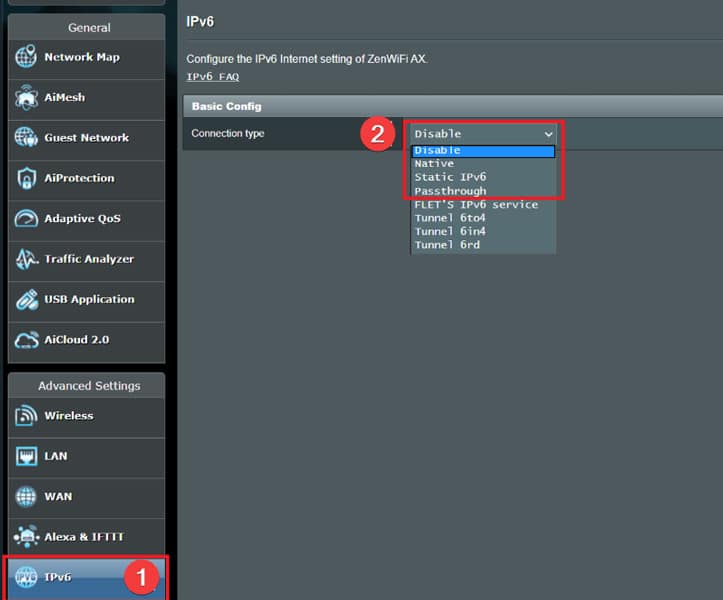
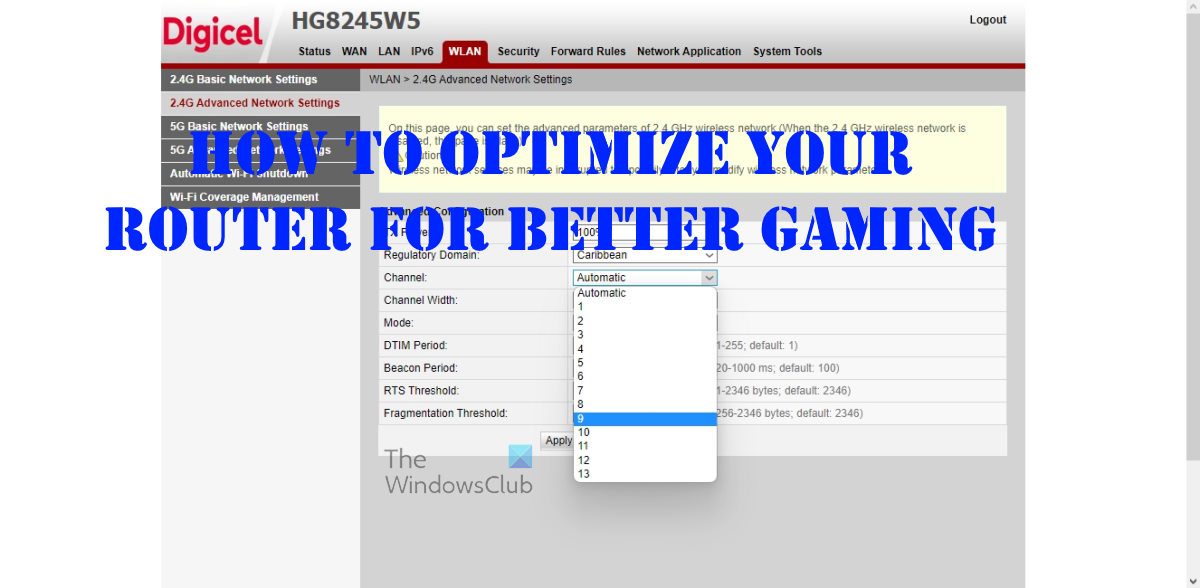
- Access Your Router's Settings: Open a web browser and type your router's IP address in the address bar. Enter your administrator login credentials to access your router's settings.
- Set Up Port Forwarding: Look for the "Port Forwarding" or "Virtual Servers" section in your router's settings. Create a new rule to forward traffic to your Xbox console's IP address.
- Configure Your Xbox Console's Network Settings: Open your Xbox console's settings and select "Network Settings." Choose "Test Network Connection" and see if your network is stable and connected.
- Test Remote Play: Perform a remote play setup test to ensure your console is set to enable remote play. This test checks your network connection, Xbox Wireless Controller connection, and console settings to ensure you can control and play games on the web.
Common Router Settings for Xbox Console
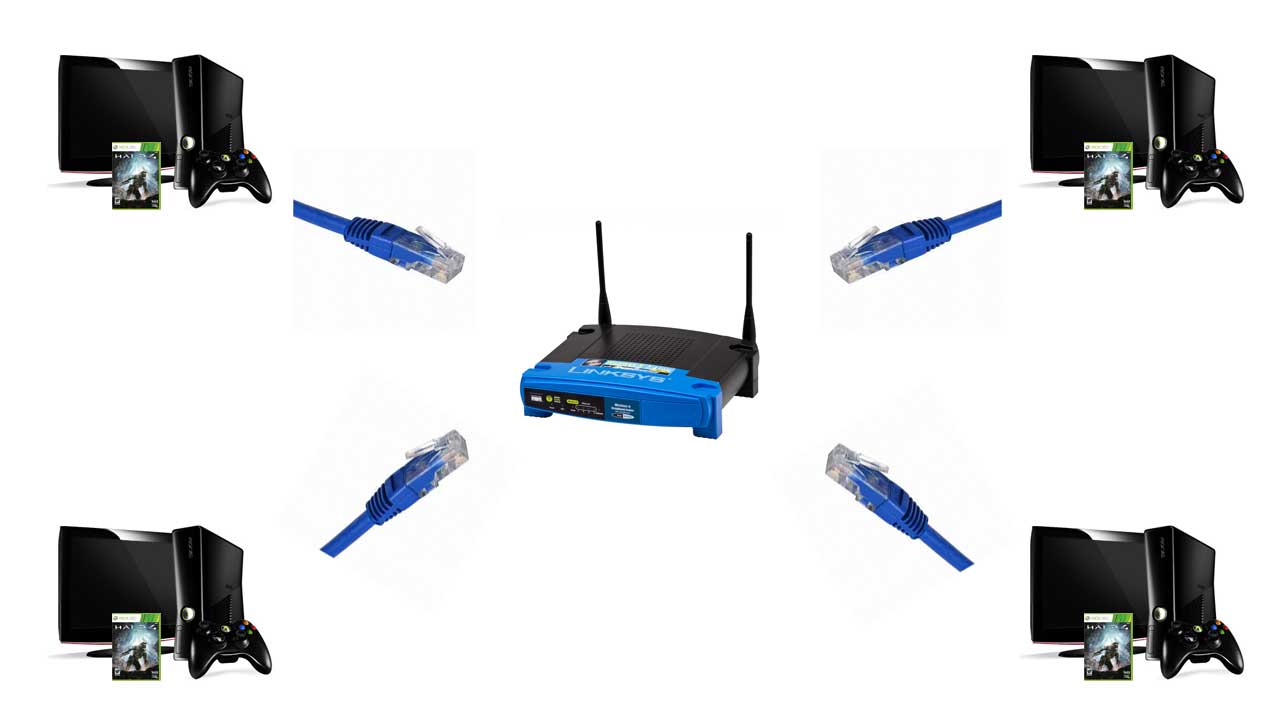
Here are some common router settings you may need to configure for your Xbox console:
- Static IP Address: Assign a static IP address to your Xbox console to ensure a stable connection.
- Port 3074: Forward traffic to port 3074 to enable multiplayer gaming and chat.
- UPnP (Universal Plug and Play): Enable UPnP on your router to allow your Xbox console to communicate with your router for multiplayer gaming and chat.
Additional Tips for a Smooth Gaming Experience
Here are some additional tips to ensure a smooth gaming experience:
- Update Your Router's Firmware: Regularly update your router's firmware to ensure the latest security patches and features.
- Use a Wired Connection: Use a wired Ethernet connection to your Xbox console for faster and more reliable connections.
- Configure Your Xbox Console's Wireless Settings: Configure your Xbox console's wireless settings to ensure a stable connection to your router.
Conclusion
Configuring your router for your Xbox console is essential for a smooth and stable online gaming experience. By following these steps and configuring your router correctly, you can improve your connection stability and speed, reducing lag and disconnections. Remember to update your router's firmware regularly, use a wired connection, and configure your Xbox console's wireless settings for an optimal gaming experience.

![Port Forwarding In Xbox [How To Do It] - Tech4Gamers](http://heelpbook.altervista.org/wp-content/uploads/2011/10/xbox-360-network-settings-main-configure-network.gif "Port Forwarding In Xbox [How To Do It] - Tech4Gamers")