How to Update Router Firmware on Computer: A Step-by-Step Guide
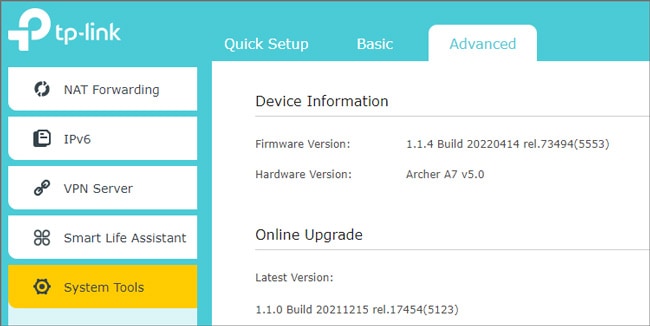
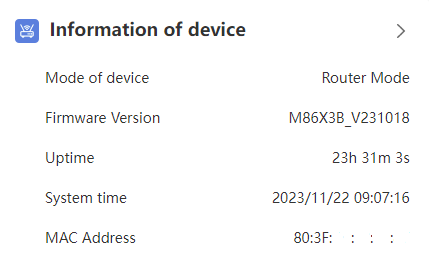
Keeping your router's firmware up-to-date is essential for optimal network performance, enhanced security, and new features. Old firmware can lead to connectivity issues, network lag, and even security vulnerabilities. In this article, we will show you how to update your router's firmware on a computer, covering the process for various router brands and models.
Why Update Router Firmware?
Updating your router's firmware can bring several benefits, including:
- Improved connectivity and network performance
- Added new features and functions
- _PATCHED security vulnerabilities
The frequency of firmware updates varies depending on the router manufacturer and model. In general, you should update your router's firmware every 2-3 months to ensure you have the latest security patches and features.
Before You Begin: Preparing Your Router for Firmware Update
Before updating your router's firmware, make sure:
- Disconnect all devices from the network except for the computer you will use for the update.
- Log in to your router's web interface using a PC or laptop.
- Write down your router's current firmware version, as you may need it for troubleshooting purposes.
Accessing Router Settings
Follow these steps to access your router's settings:
Connect your device to your router's network and open a web browser.
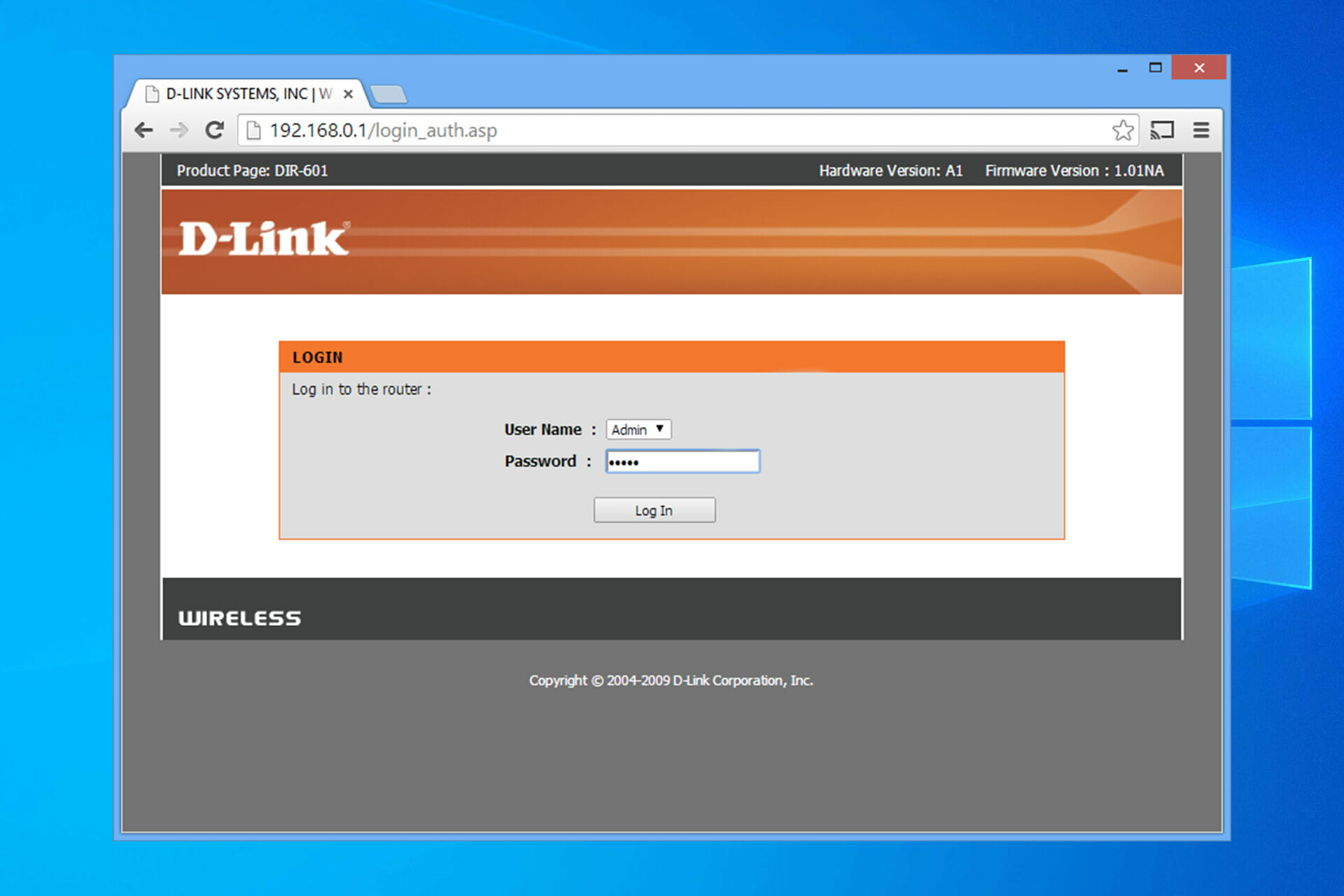
Type your router's IP address in the address bar. The most common addresses are 192.168.1.1 or 192.168.0.1.
If you are using a Windows 10 device, you can also search for "router settings" in the Start menu and follow the prompts.
Once you log in to your router's web interface, navigate to the "Update" or "Firmware" section.
Updating Router Firmware: A Step-by-Step Guide
Follow these steps to update your router's firmware:
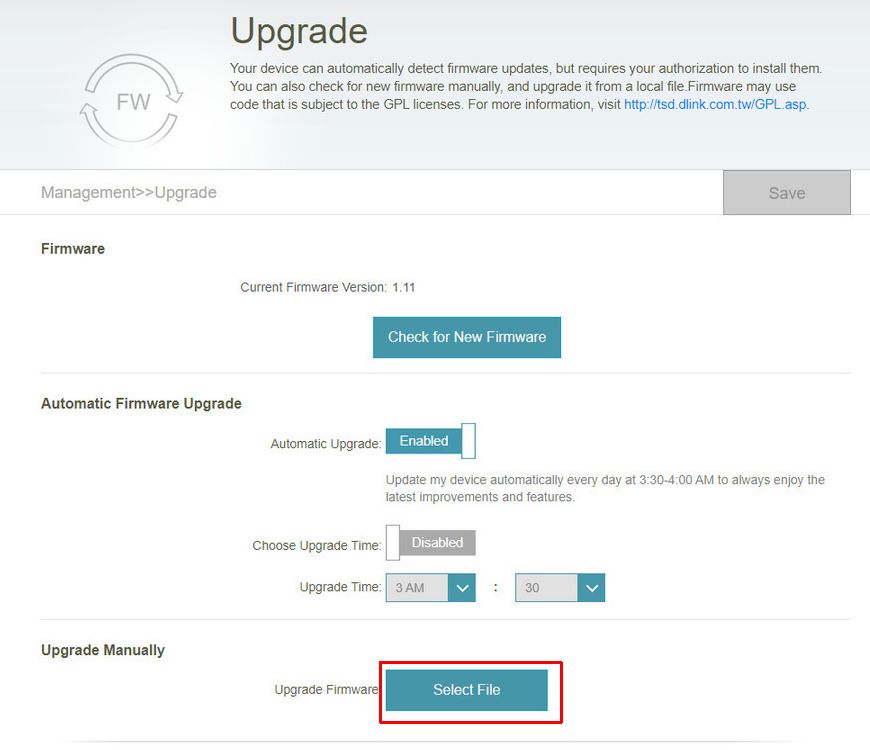
- Check if there is a new firmware available for your router. Look for the "Check for Update" or "Firmware Update" button.
- Click on the button to check for updates. Your router will connect to the manufacturer's server to search for available updates.
- If a new firmware is available, click the "Download" button to start the download process.
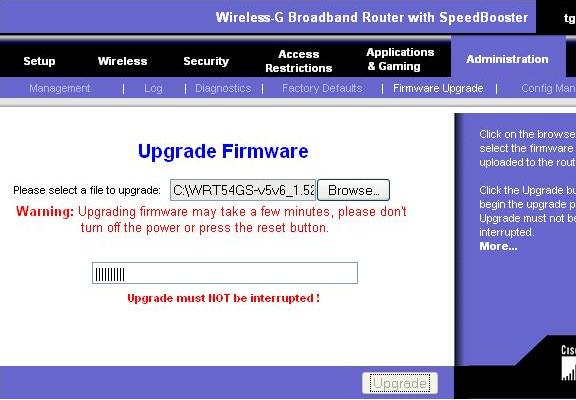
- Once the download is complete, click the "Update" button to start the installation process.
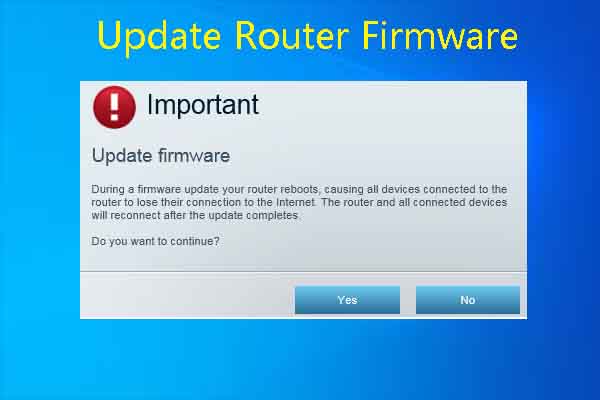
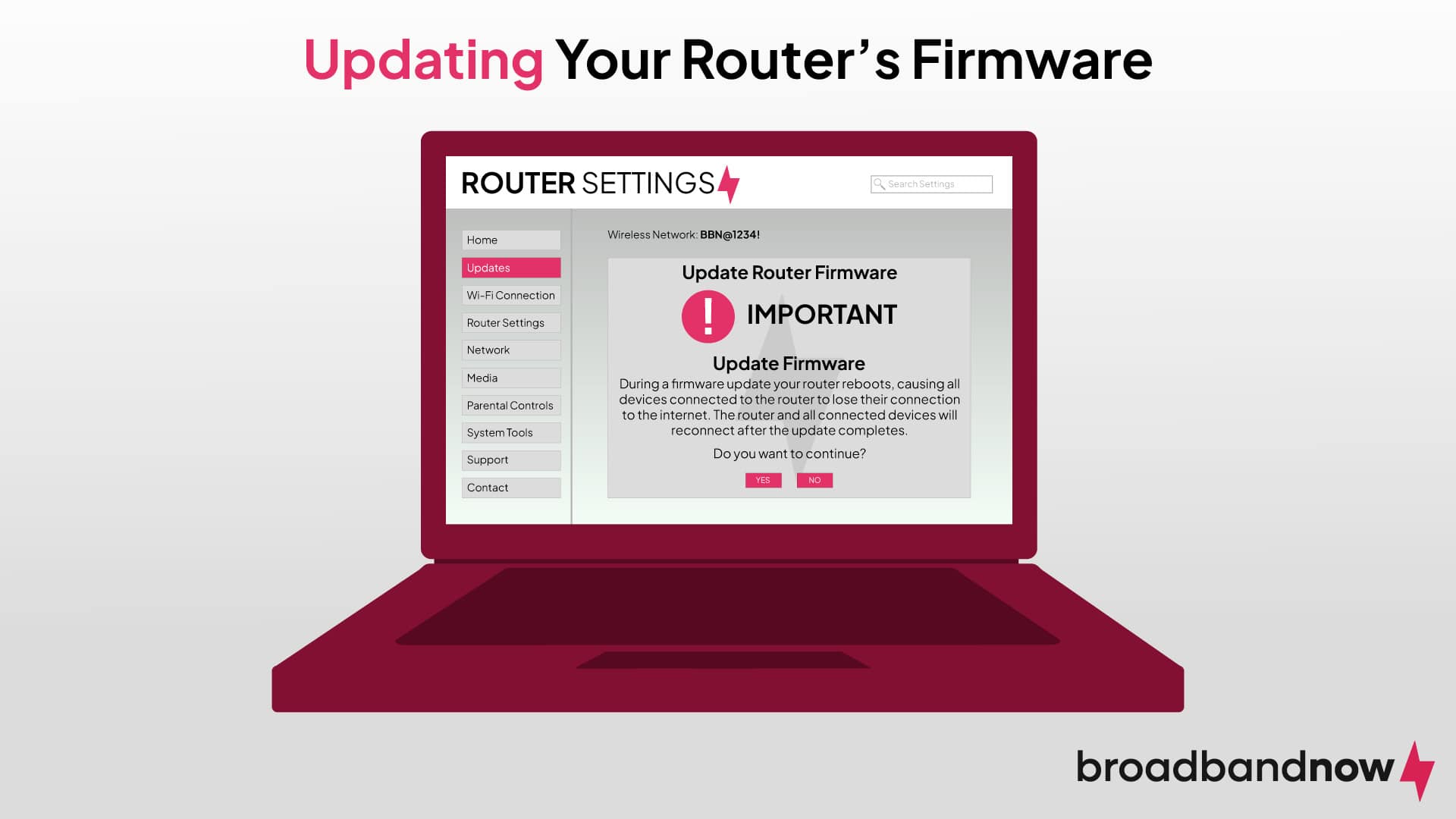
- Follow the prompts to complete the firmware update. Your router may restart during the process.
Post-Update Checklist
After updating your router's firmware, make sure:
- Reconnect all devices to the network.
- Test your network connection to ensure it's working as expected.
- Check for any new features or settings that may have been added with the firmware update.
Conclusion
Updating your router's firmware on a computer is a straightforward process that can greatly improve your network performance, security, and features. Remember to keep your firmware up-to-date to ensure optimal network performance and to stay ahead of potential security threats. If you encounter any issues during the update process, consult your router's manual or manufacturer's support page for assistance.
Software Requirements
You'll need a few software tools to update your router's firmware, including:
- Internet Explorer (or a similar web browser)
- A computer (or laptop) with a working internet connection
- Administrative rights on the computer (if you are using a Windows 10 device)
Supported Router Models
This guide covers a wide range of router models, including:
- ASUS RT-AC series
- NETGEAR Nighthawk series
- TP-Link Archer series
- Linksys EA series
Additional Resources
For more information on updating your router's firmware, refer to the following resources:
- Router manufacturer's support page
- manuals and firmware release notes
- Community forums and support groups


![[Wireless Router] How to update the firmware of your router to the ...](https://www.ctvforme.com/assets/blogs/how-to-update-firmware-on-xfinity-router.webp "[Wireless Router] How to update the firmware of your router to the ...")