Wi-Fi Setup with Google Mesh Network: A Comprehensive Guide
Are you tired of dealing with dead zones and weak Wi-Fi signals throughout your home? Look no further than Google's mesh network setup solution. In this article, we'll walk you through the step-by-step process of setting up a Google mesh network, covering the entire home with reliable and fast Wi-Fi coverage.
What is Google Mesh Network?
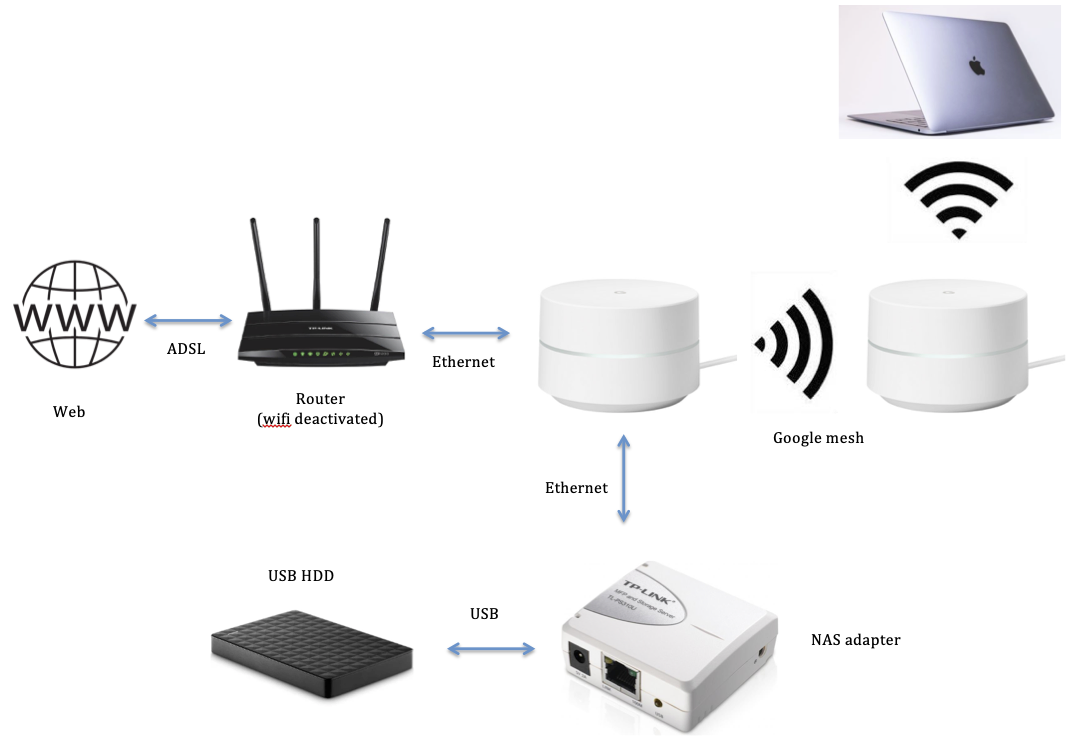
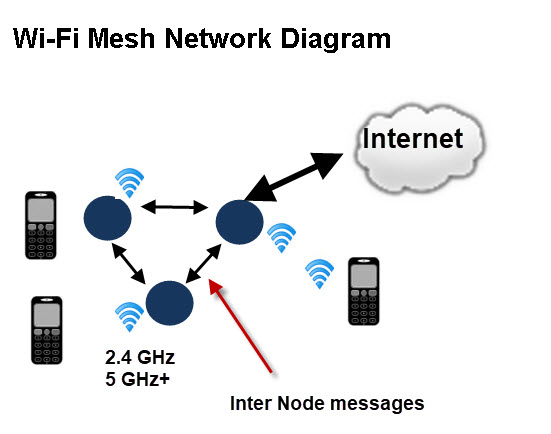
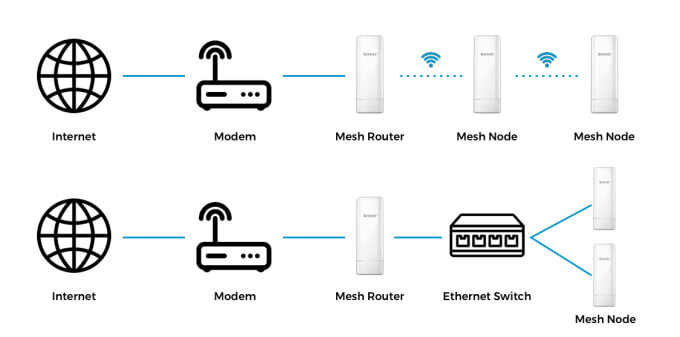
Google mesh network is a type of wireless network that uses multiple nodes, or Wi-Fi points, to create a single, seamless network. This is in contrast to a traditional Wi-Fi setup, which may rely on a single router and may experience dead zones or weak signals in certain areas of the home. By using multiple nodes, Google's mesh network can provide full coverage throughout the home, even in areas with thick walls or other obstacles.
Benefits of Google Mesh Network Setup
- Improved Coverage**: With a Google mesh network, you can expect full coverage throughout your home, eliminating dead zones and weak signals.
- Boosted Speed**: Google's mesh network can provide faster speeds than traditional Wi-Fi setups, making it ideal for heavy users and streaming enthusiasts.
- Seamless Connectivity**: With Google's mesh network, devices can seamlessly transition between nodes, ensuring a stable and reliable connection throughout the home.
- Easy Setup**: The Google Home app makes setting up your mesh network a breeze, guiding you through the process with ease.
- Convenient Management**: The Google Home app also provides easy management of your mesh network, allowing you to monitor performance, adjust settings, and troubleshoot issues with ease.
Step-by-Step Google Mesh Network Setup
To set up your Google mesh network, follow these steps:
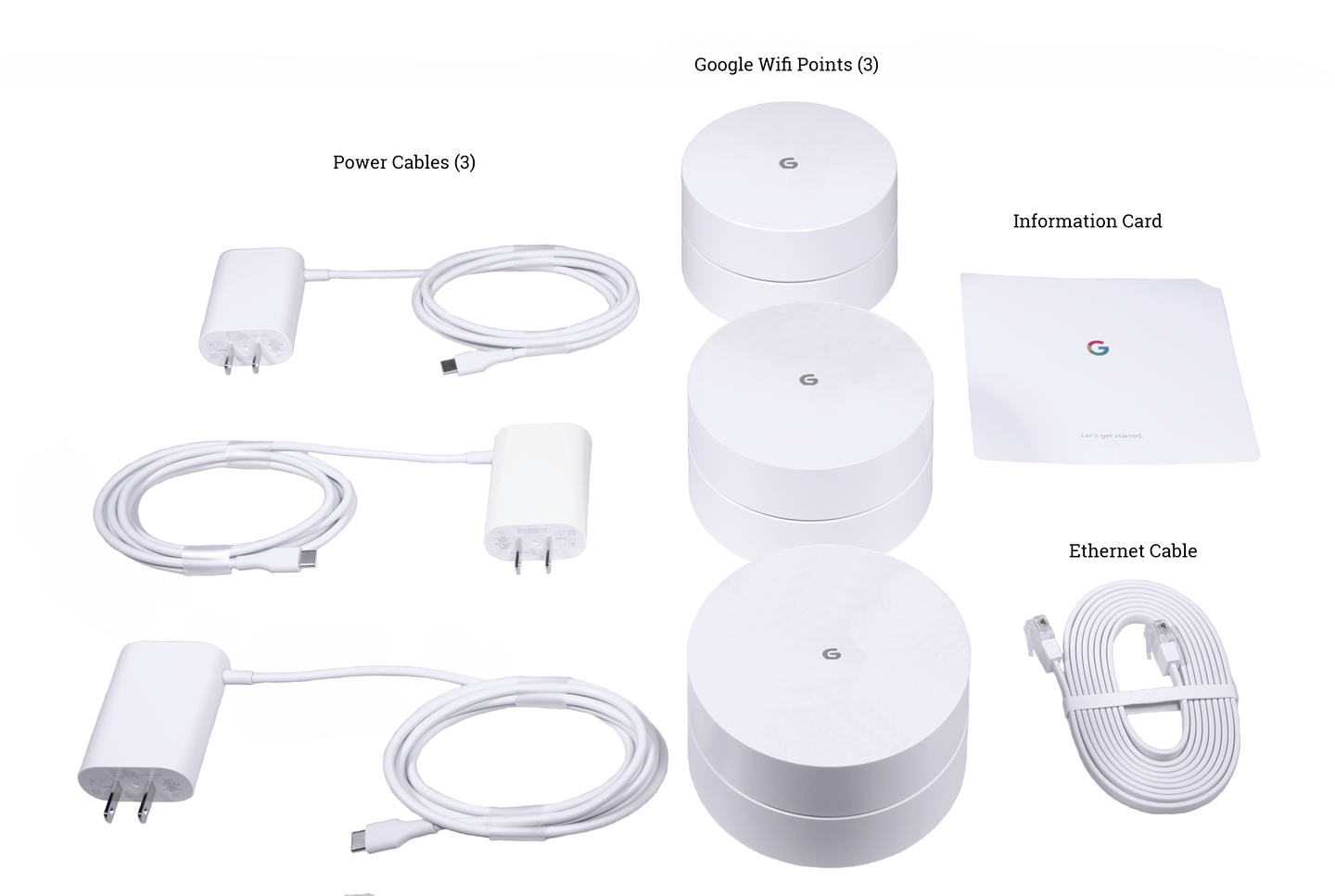
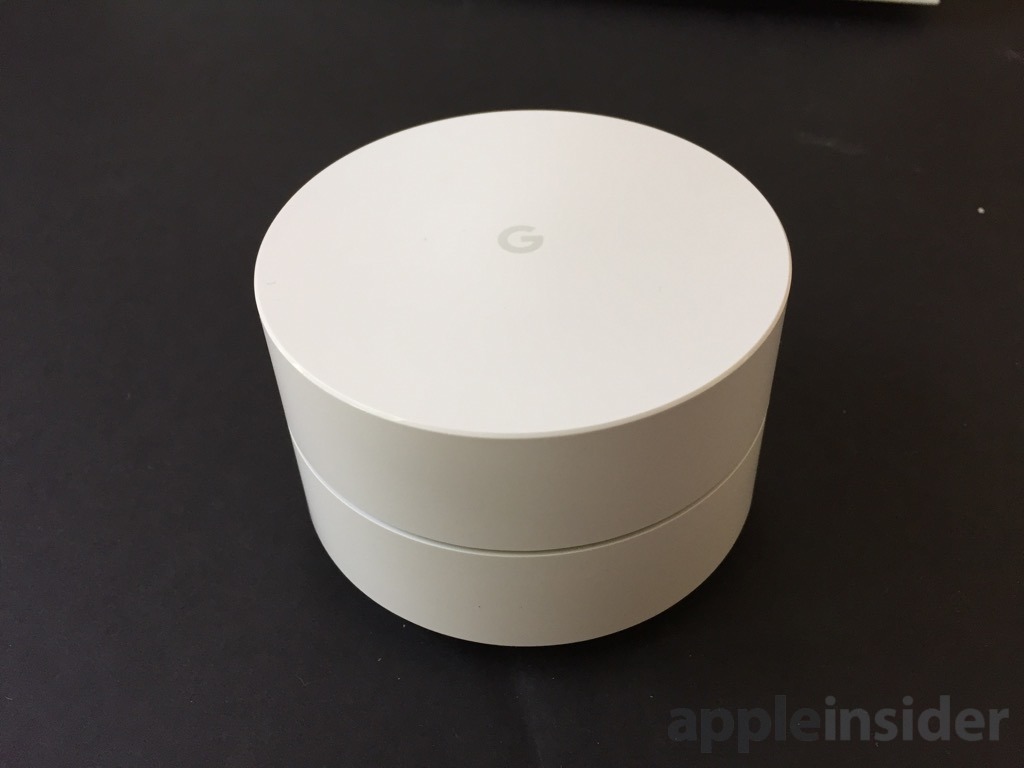
- Unbox Your Wi-Fi Points**: Unbox your Google Wi-Fi points and plug them into power sources within your home.
- Download the Google Home App**: Download the Google Home app on your smartphone or tablet.
- Sign In with Google Account**: Sign in with your Google account to access the app's full features.
- Connect to the Network**: Connect your device to the Google Wi-Fi network, as prompted by the app.
- Configure Your Network**: Configure your network settings, including network name, password, and other preferences.
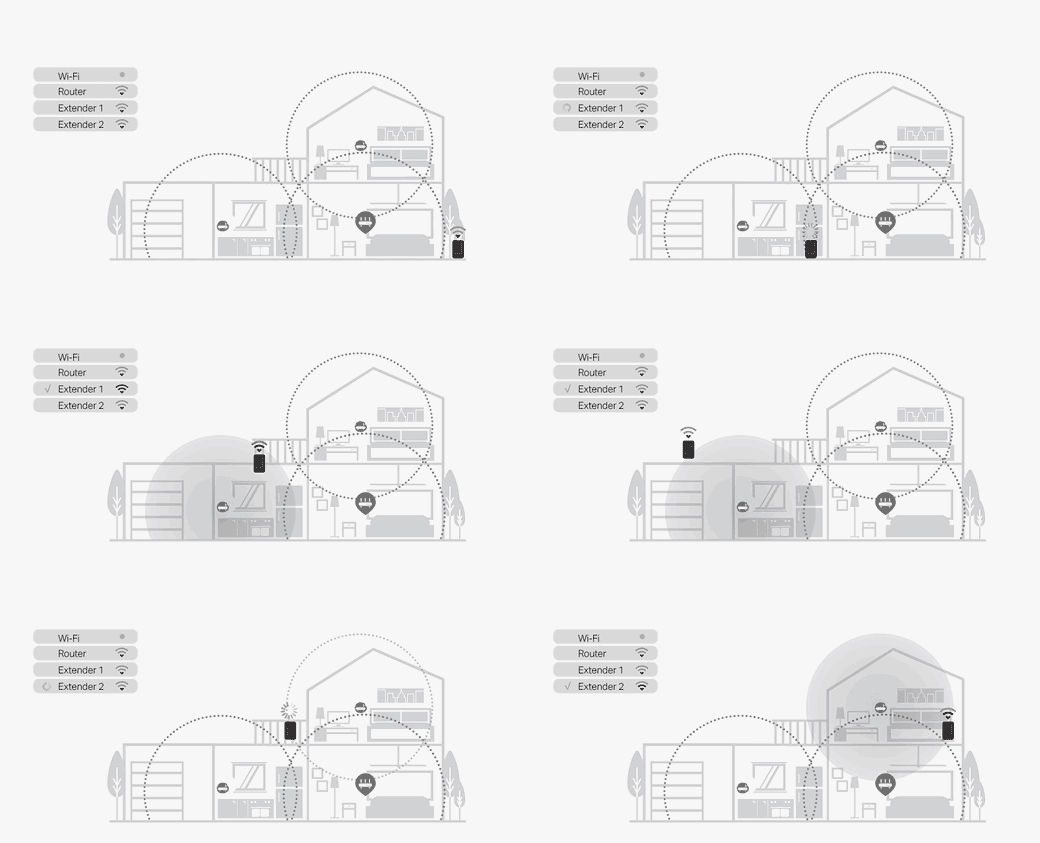
- Add Wi-Fi Points**: Add additional Wi-Fi points to your network, following the app's instructions for placement and configuration.
- Test Your Network**: Test your network to ensure seamless connectivity and optimal performance.

Choose the Right Wi-Fi Points for Your Needs
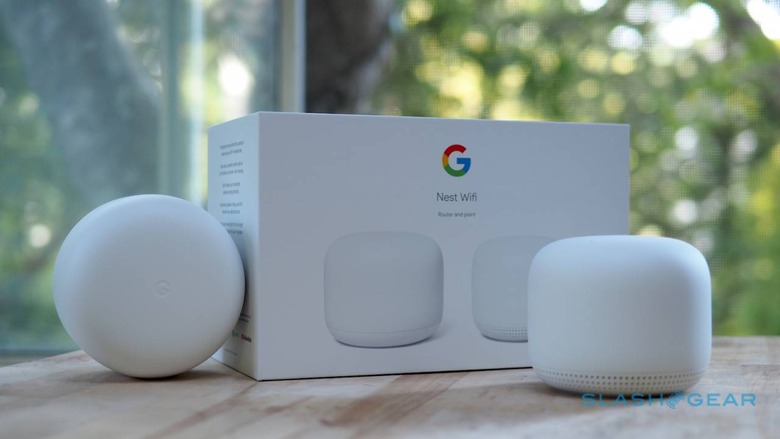
Google offers a range of Wi-Fi points to suit different needs and budgets. Choose from models like the Google Nest Wi-Fi, the Google Nest Wi-Fi Pro, or the Google Nest Wi-Fi 6.
Each model offers a unique set of features and benefits, so be sure to research and compare them before making a purchase. Some key considerations include:
- Speed and Performance**: Choose a model with the right speed and performance for your needs, whether you're a heavy user or a light user.
- Design and Form Factor**: Consider the design and form factor of the Wi-Fi point, ensuring it fits with your home's style and aesthetics.
- Price and Budget**: Determine your budget and choose a model that fits within it, while still meeting your needs and requirements.
Maximize Your Home Internet Coverage with Google Mesh Network
By following these steps and choosing the right Wi-Fi points for your needs, you can maximize your home internet coverage with Google's mesh network setup. Experience the benefits of improved coverage, boosted speeds, seamless connectivity, and easy setup and management.
Conclusion
Google's mesh network setup solution is the perfect choice for anyone looking to improve their home internet coverage. With a seamless transition between nodes, reliable connectivity, and easy setup and management, you can trust that your mesh network will meet your needs and exceed your expectations.