G Network Setup and Setup Process
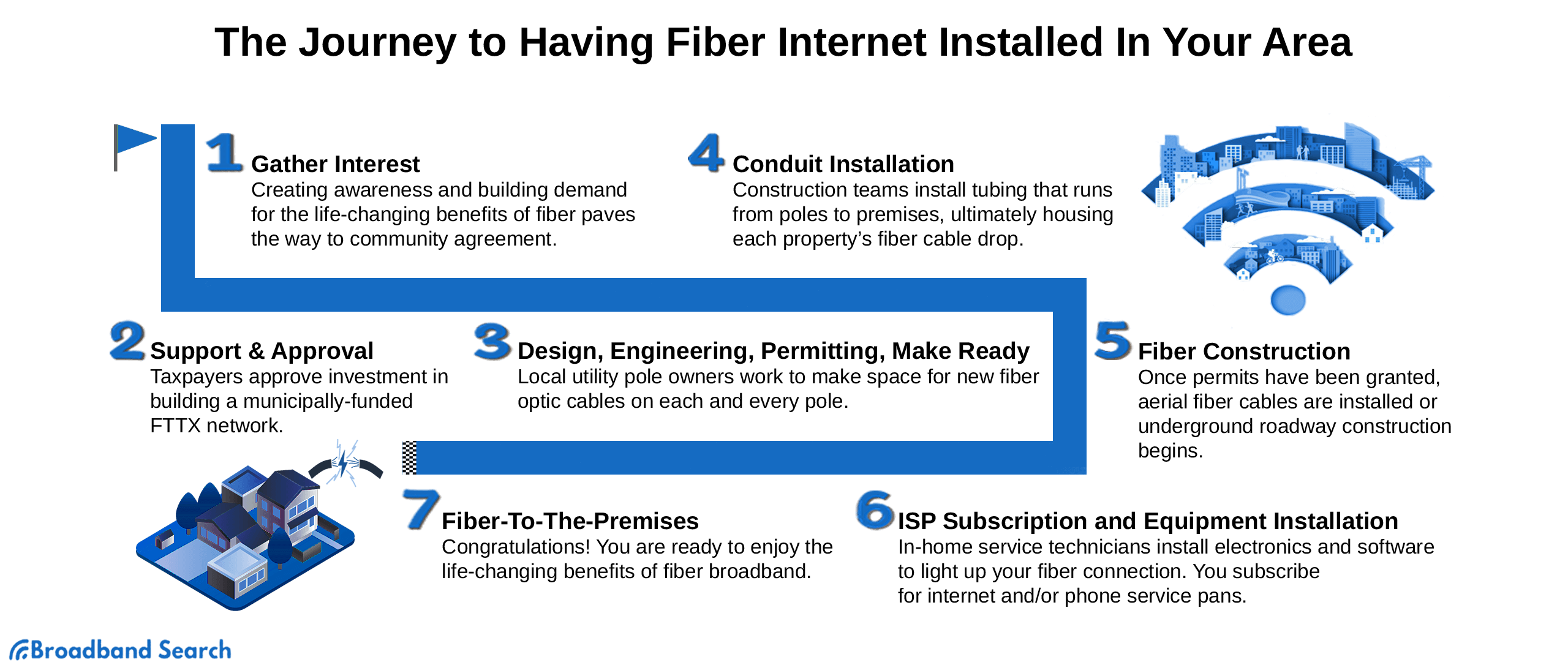
Are you excited to experience the seamless connectivity and high-speed internet provided by G Network? Setting up your G Network service is a straightforward process that requires some basic steps to get you connected to the world of cutting-edge internet technology. In this article, we will guide you through the G Network setup and setup process, making it easy for you to enjoy the numerous benefits of a full fiber broadband connection.
Steps to Set Up Your G Network Service
Upon placing an order with G Network, you can follow these four simple steps to set up your full fiber broadband service in your home:
Step 1: Installation Process
After ordering your G Network service, a professional installation team will arrive at your doorstep to set up the connection. They will determine the best location for the fiber optic cable to be installed, ensuring that it causes minimal disruption to your household. The team will also set up the necessary equipment, including the router, modem, and WiFi beacons, to provide the best possible signal coverage.
Step 2: Unpacking and Hardware Setup
Upon the arrival of your G Network kit, you'll need to unpack the hardware and plug it into your device. Depending on your specific plan, you may have a router, modem, and WiFi beacons to set up. The router is usually pre-configured with a WiFi password and code, making it easy to access the service. You'll also have Ethernet ports available to hardwire into the router for peace of mind.
Step 3: Location Test for WiFi Beacon
When setting up your WiFi Beacon, it's essential to find the most suitable location for the best possible coverage. Using the Nokia WiFi app, you can easily test different locations for your Beacon without risking any additional charges. The app provides guidance on where to place the device for the best signal coverage. Follow these location placement tips:
- Place the device in an open space
- Keep the device away from the corners of the room
- Avoid placing the device near microwaves and radios that can interfere with the signal
Step 4: Final Configuration and Activation
With your hardware setup, final configuration is the next step. If you've opted for a self-installation, use the Nokia WiFi app to configure your broadband settings, parental controls, and limit internet access. If you have chosen professional installation, the team will handle this step for you. You can then activate your service using the provided code or mobile app.
Additional Tools and Resources
After setting up your G Network service, it's easy to get help with any connection issues, outages, or Wi-Fi speed using the G Network support resources. The support section provides a frequently asked questions (FAQ) page, guides for checking connection status, configuring WiFi beacons, and more. You can find answers to commonly asked questions about G Network, including the setup process, on their support website.
Conclusion
Setting up your G Network service is a straightforward process that only requires a few basic steps. By following the outlined steps and using the provided tools and resources, you can get started on enjoying seamless, high-speed internet connectivity. G Network is dedicated to providing excellent customer service and technical support to ensure a hassle-free experience for all its users.
.png "Your guide to installation with G.Network")




/servers-setup-3---ipv4.png?sfvrsn=d4997ccd_1 "Paymode Business Payments Network | Bottomline")