Wireless Router Configuration Settings: A Comprehensive Guide
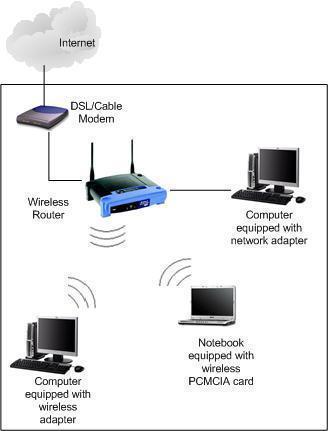
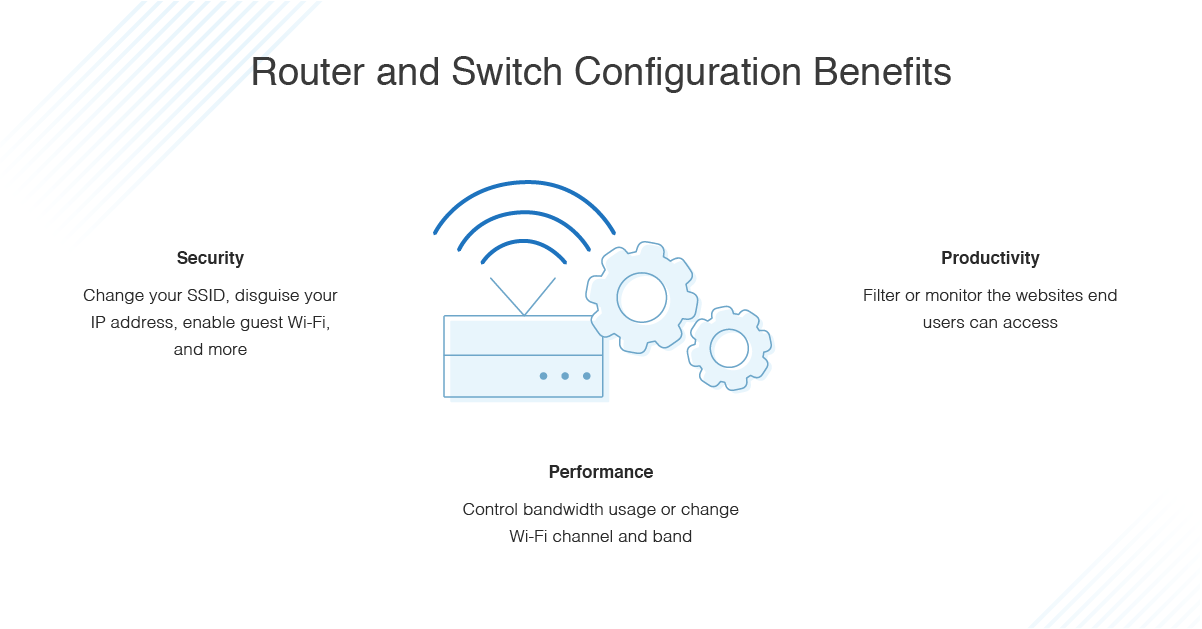
Configuring your wireless router is a crucial step in setting up a reliable and secure home network. With the numerous features and settings available, it can be overwhelming to navigate and make the most of your router's capabilities. In this article, we will walk you through the essential wireless router configuration settings to get you started.
Accessing Your Router's Settings
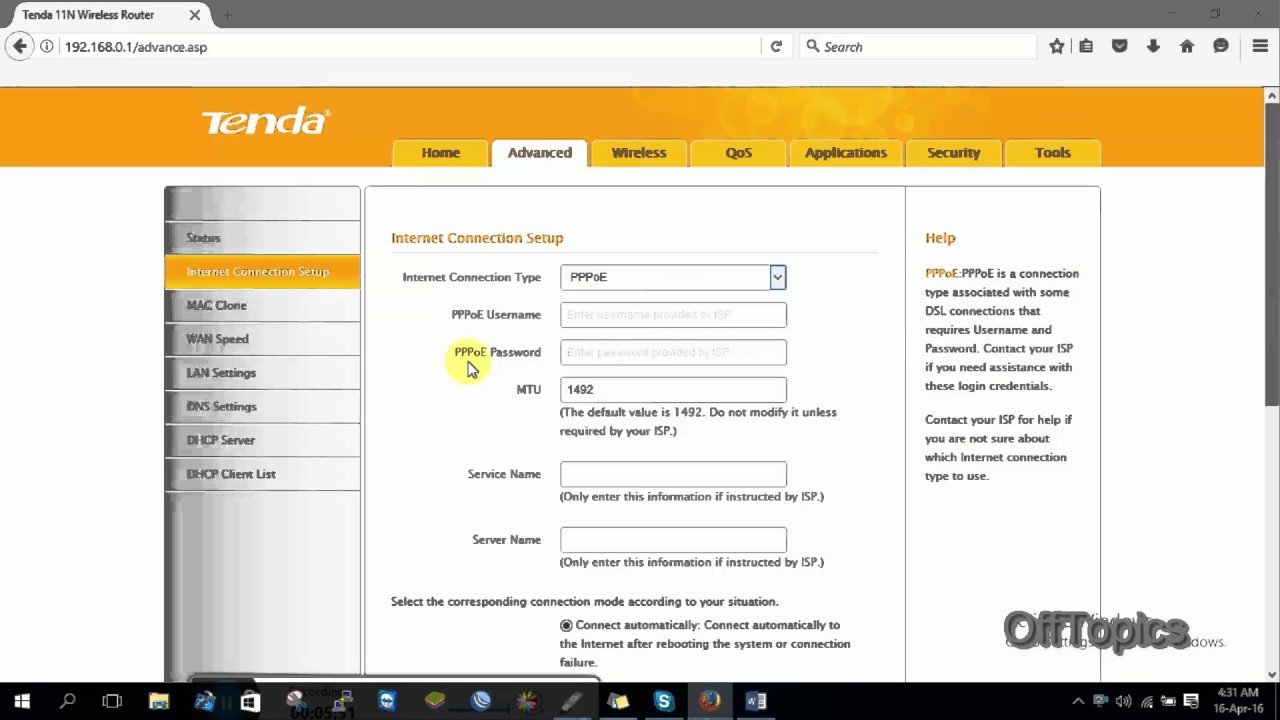
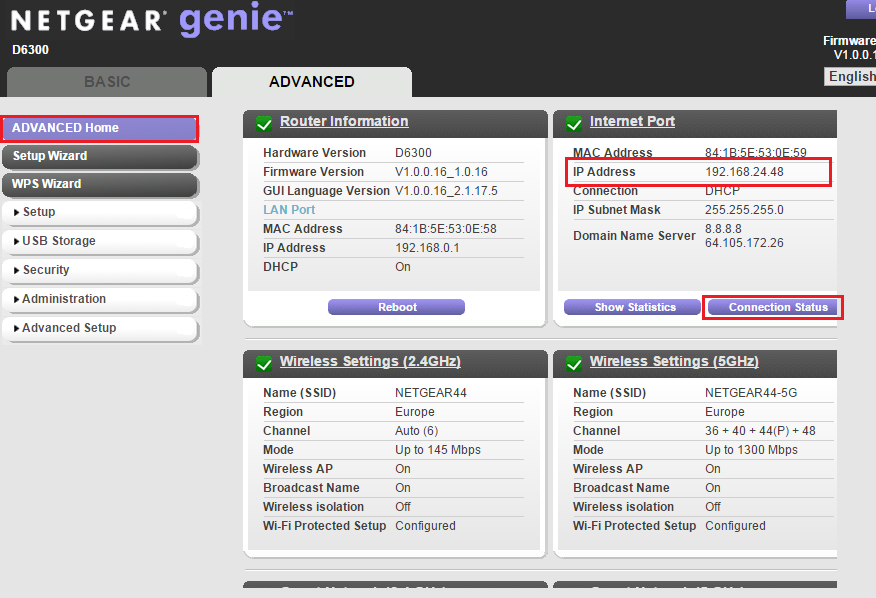
Before we dive into the configuration settings, you need to access your router's settings panel. This can be done by typing the IP address of your router into a web browser. The most common default IP addresses are:
- 192.168.0.1
- 192.168.1.1
- 192.168.2.1
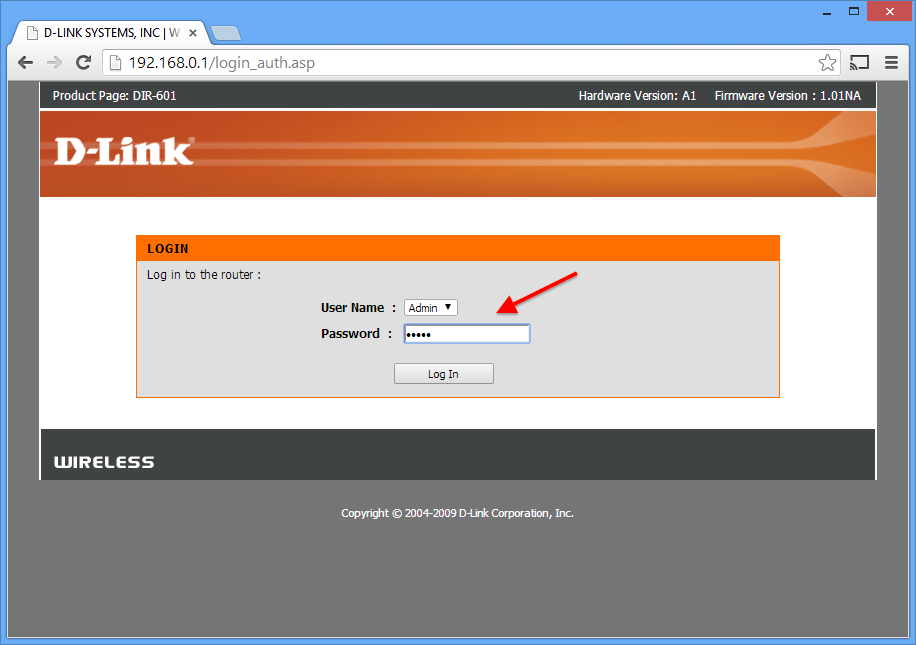
Once you access your router's settings, you will be asked to log in with a username and password. These credentials are usually printed on the underside of your router or can be found in the user manual.
Changing Your Wi-Fi Network Name and Password
One of the most common reasons to access your router's settings is to change the Wi-Fi network name and password. To do this, follow these steps:
- Log in to your router's settings panel
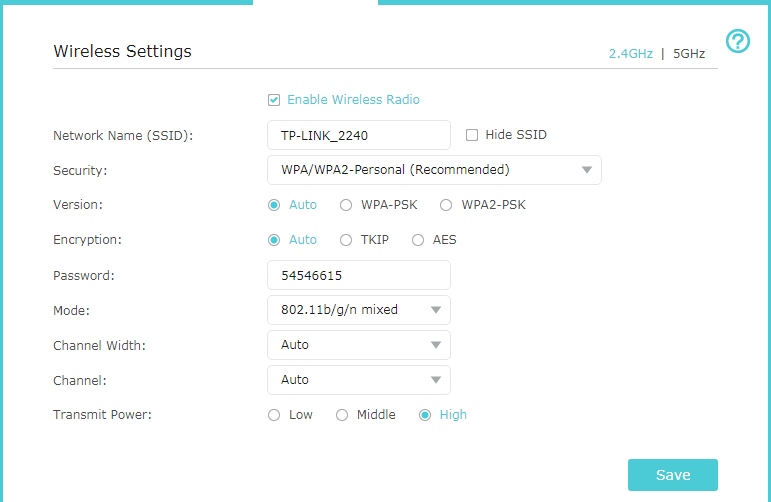
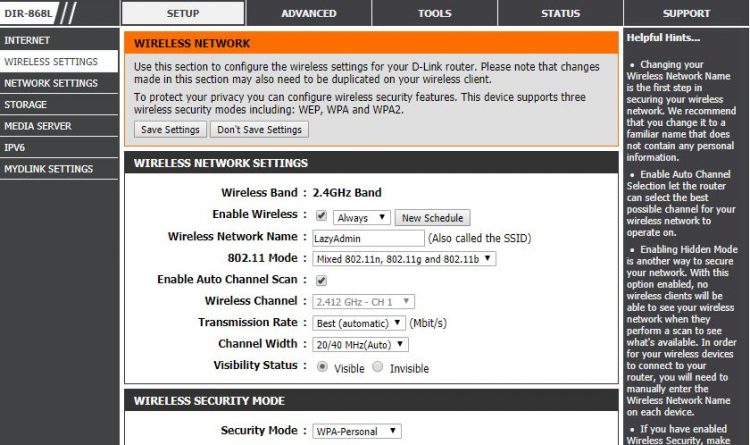
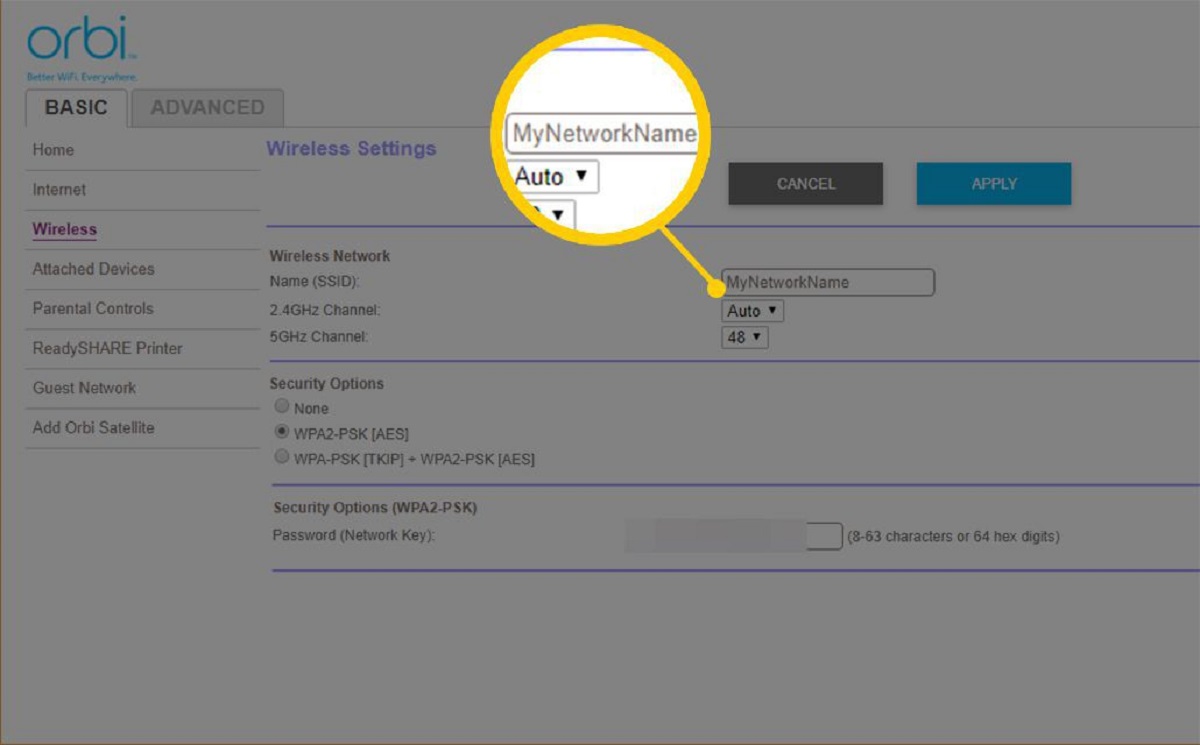
- Click on the "Wireless Settings" or "Wireless" tab
- Change the SSID (network name) and password as desired
- Save the changes
Securing Your Network with WPA2 or WPA3
Wireless security is a top priority when it comes to your router configuration. To ensure a secure connection, configure your router to use WPA2 or WPA3 encryption. To do this:

- Log in to your router's settings panel
- Click on the "Wireless Settings" or "Wireless" tab
- Select WPA2 or WPA3 as the encryption type
- Choose a strong password (at least 12 characters long)
- Save the changes
Channel and Frequency Settings
Channel and frequency settings are crucial for optimal Wi-Fi performance. To configure these settings:
- Log in to your router's settings panel
- Click on the "Advanced Settings" or "Wireless" tab
- Change the channel to an open band (e.g., 2.4GHz or 5GHz)
- Save the changes
Quality of Service (QoS) Settings
Quality of Service (QoS) settings help prioritize traffic on your network, ensuring that critical applications receive the bandwidth they need.
- Log in to your router's settings panel
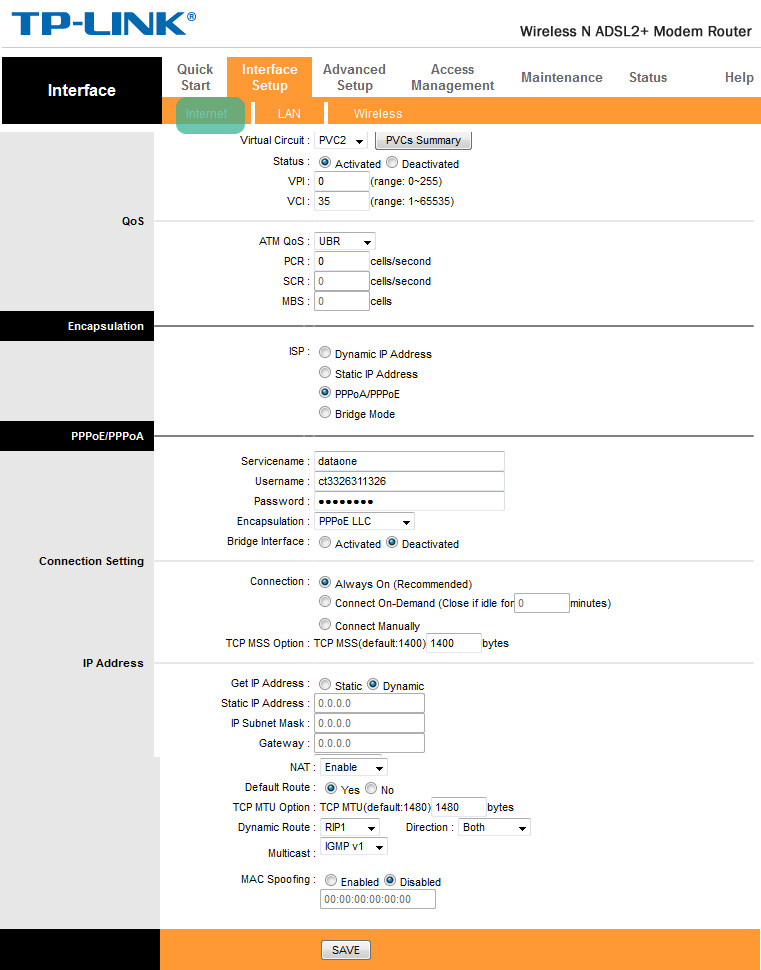
- Click on the "Advanced Settings" or "QoS" tab
- Set the QoS settings to prioritize critical applications (e.g., video streaming, gaming)
- Save the changes
Conclusion
Configuring your wireless router is a straightforward process that requires attention to detail. By following the steps outlined in this article, you will be able to access your router's settings, change your Wi-Fi network name and password, secure your network with WPA2 or WPA3, configure channel and frequency settings, and prioritize traffic with Quality of Service settings. Remember to always save changes and reboot your router after making any changes to ensure they take effect.