How to Improve G Network Settings for Fortnite
Fortnite is one of the most popular online multiplayer games in the world, with millions of players competing against each other every day. However, many players experience frustrating lag, stuttering, and high ping issues that can make the game unplayable. One of the main causes of these issues is poor network settings, which can be easily improved with a few simple tweaks.
Understanding Network Settings
Network settings refer to the configurations that control how your computer communicates with the Fortnite servers. These settings can affect the speed, stability, and performance of your gameplay. Improving your network settings can help reduce lag, increase FPS, and overall improve your gaming experience.
Step 1: Turn Off WiFi
The first step to improving your network settings is to turn off WiFi completely. WiFi is a wireless connection that can introduce lag and instability into your gameplay. Instead, use a wired Ethernet connection, which is faster and more reliable. If you can't run a cable, consider using Powerline adapters as a last resort. These adapters send network data through your home's electrical wiring, which is better than WiFi but not as good as direct Ethernet.
Step 2: Check Your Internet Service Provider (ISP)
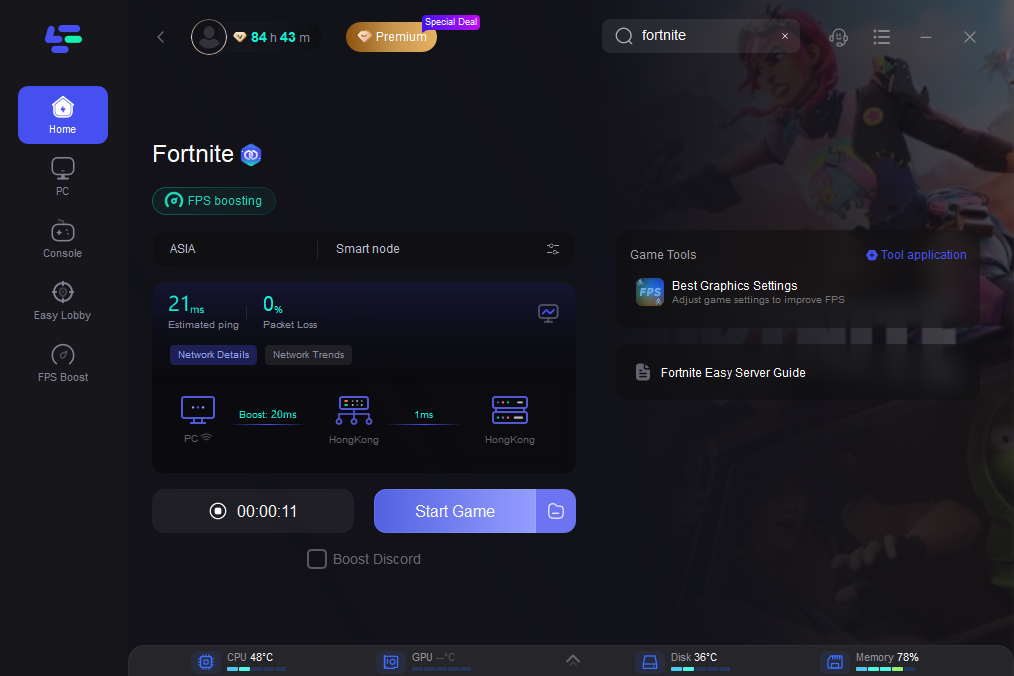
Your ISP plays a crucial role in your network settings. If your ISP is routing traffic through congested or slow internet exchange points, it can cause a sudden increase in ping. To check your ping to Fortnite data centers, use online tools or consult with your ISP. You may need to adjust your ISP's settings or switch to a faster plan to improve your ping.
Step 3: Adjust Your Router Settings
Your router settings can also impact your network performance. Check your router's settings to ensure that they are optimized for gaming. Adjust settings such as Quality of Service (QoS) to prioritize gaming traffic and reduce lag. You may also want to consider upgrading your router to a gaming-specific model that can handle high-bandwidth applications like Fortnite.
Step 4: Update Your Network Drivers
Outdated network drivers can cause compatibility issues and slow down your network performance. Update your network drivers to the latest version to ensure that your computer is communicating with the Fortnite servers efficiently. You can do this by going to the Device Manager, selecting your network adapter, and clicking on the Update driver button.
Step 5: Disable Background Applications
Background applications can consume bandwidth and slow down your network performance. Disable any unnecessary applications that may be running in the background while you play Fortnite. This will help free up resources and improve your network settings.
Step 6: Use a Gaming-Optimized Network Device
A gaming-optimized network device can help improve your network settings and reduce lag. Consider using a Netduma R3 gaming router, which is specifically designed for online gaming. This device can help optimize your network settings and provide a more stable connection to the Fortnite servers.
Conclusion
Improving your network settings can make a huge difference in your Fortnite gameplay experience. By following these simple steps, you can reduce lag, increase FPS, and enjoy a more stable connection to the Fortnite servers. Remember to turn off WiFi, check your ISP, adjust your router settings, update your network drivers, disable background applications, and use a gaming-optimized network device to get the best possible performance out of your network settings.
Additional Tips
- Use a wired Ethernet connection whenever possible.
- Consider using Powerline adapters as a last resort.
- Check your ISP's settings and consider upgrading to a faster plan.
- Adjust your router settings to prioritize gaming traffic.
- Update your network drivers regularly.
- Disable background applications while playing Fortnite.
- Use a gaming-optimized network device, such as a Netduma R3 gaming router.