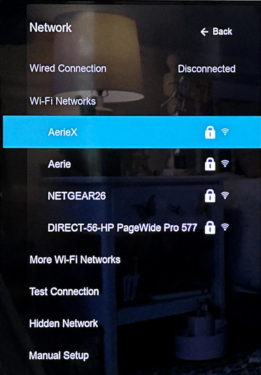
Internet Configuration for Home Use: A Beginner's Guide
Setting Up Your Internet Connection
Are you setting up internet access in your home for the first time? We'll help you set up your new broadband, DSL, or satellite internet connection, and get your PC, Mac, phones, and tablets online quickly and easily. In this article, we'll walk you through the process of setting up your internet connection from start to finish.Step 1: Determine Your Internet Type
The first step in setting up your internet connection is to determine what type of internet service you have. The most common types of internet services are broadband, DSL, and satellite internet. Make sure you know what type of service you have before proceeding.Hardware Requirements
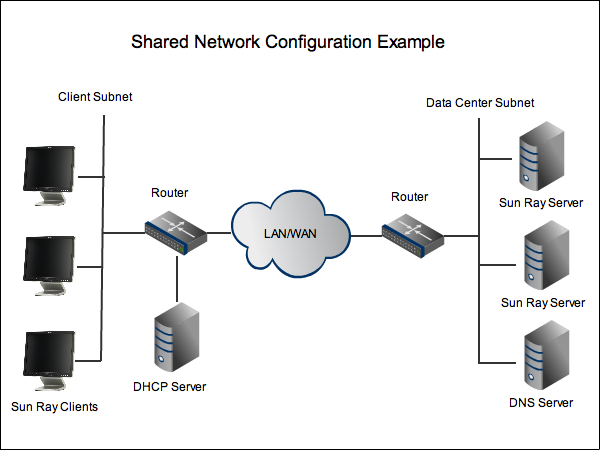
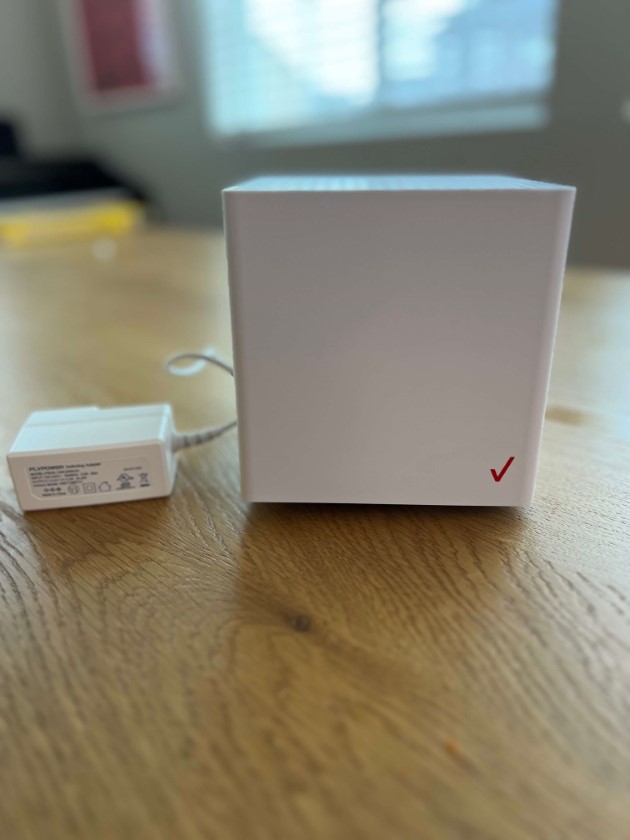
To set up your internet connection, you'll need a few pieces of hardware: * A modem (usually provided by your internet service provider) * A router (usually provided by your internet service provider or purchased separately) * A computer or device with an Ethernet portStep 2: Configure Your Modem
Once you've received your modem, follow these steps to configure it: 1.- Plug the power cord into a nearby outlet and turn on the modem.
- Wait for the modem to connect to your internet service provider's network.
- Check the modem's lights to ensure it's working correctly. The power light should be green, and the internet light should be solid or blinking.
Step 3: Connect Your Router
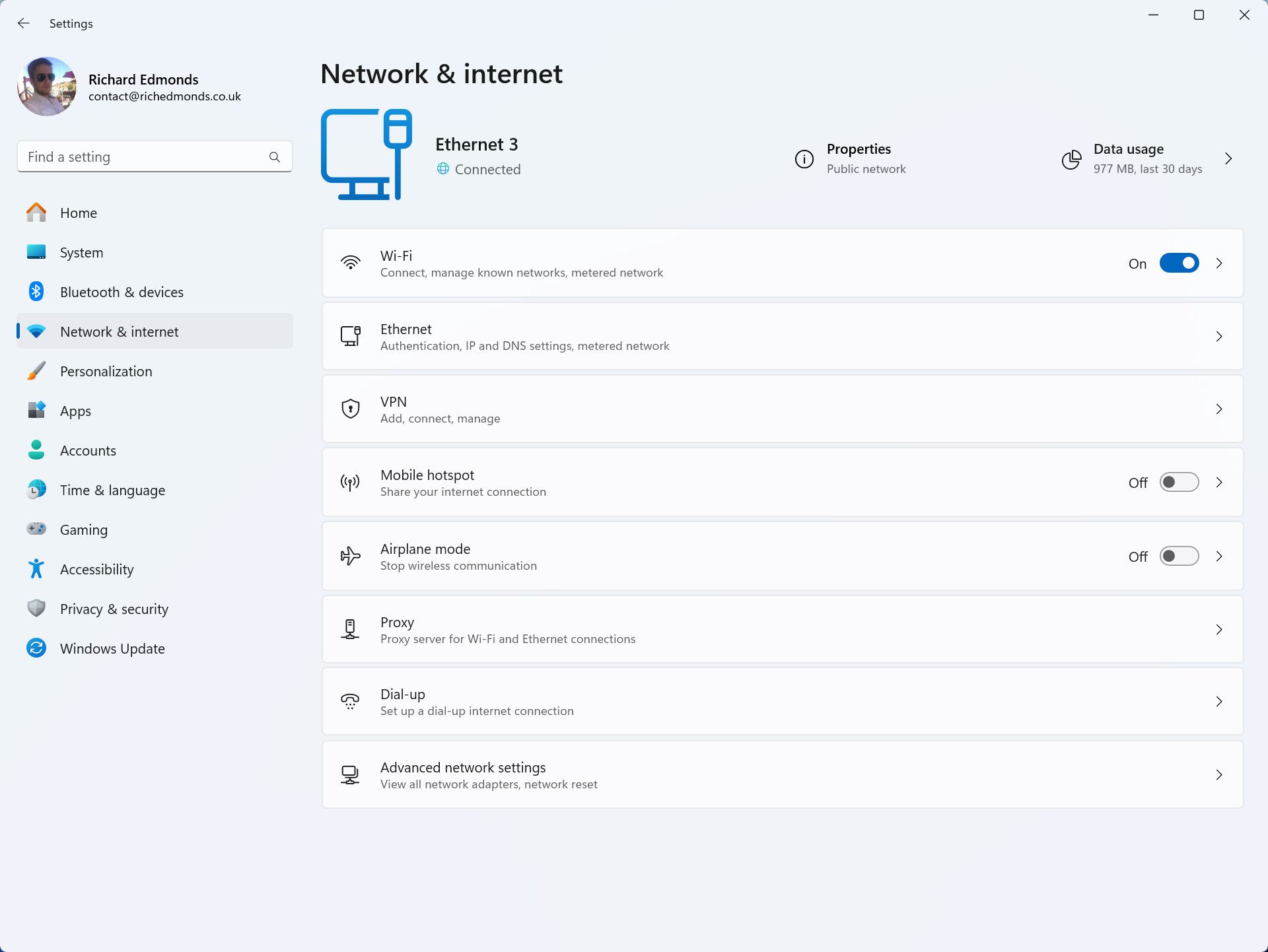
- Connect the router to the modem using an Ethernet cable.
- Turn on the router and check the lights to ensure it's working correctly. The power light should be green, and the internet light should be solid or blinking.
Step 4: Set Up Your Wi-Fi Network
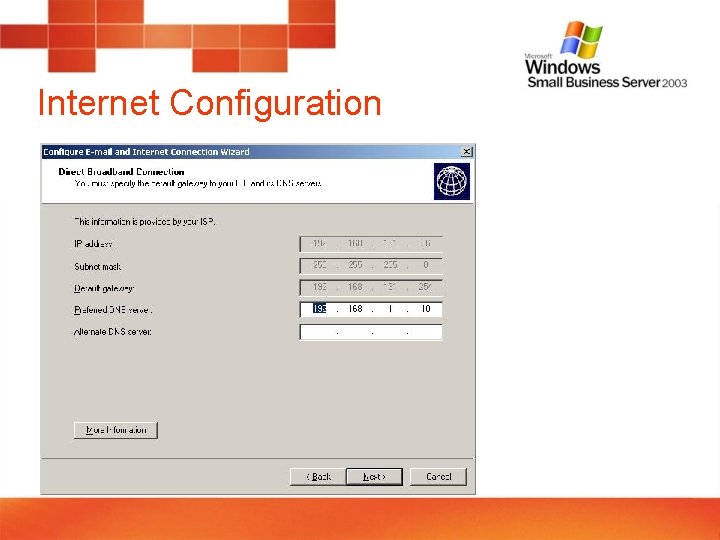
Now it's time to set up your Wi-Fi network: 1.- Open a web browser and type the router's IP address (usually 192.168.1.1) to access the router's web interface.
- Create a new network name and password for your Wi-Fi network.
- Choose the type of Wi-Fi security you want to use (WPA2 is recommended).
- Save your changes and restart your router.
Additional Tips and Tricks
To optimize your Wi-Fi settings, consider the following: *- Place your router in a central location to ensure optimal Wi-Fi coverage.
- Use a Wi-Fi analyzertool to identify and fix any dead spots in your network.
- Add guest networks to secure your network and prevent unauthorized access.
- Use MAC filters to restrict access to specific devices on your network.