Setup of Wireless G Network with Mac: A Step-by-Step Guide
Are you looking to set up a Wireless G network with your Mac? In this article, we will walk you through the process of setting up a Wireless G network with your Mac, providing you with a step-by-step guide to ensure a smooth and secure connection.
Step 1: Check Your Router's Wireless Settings
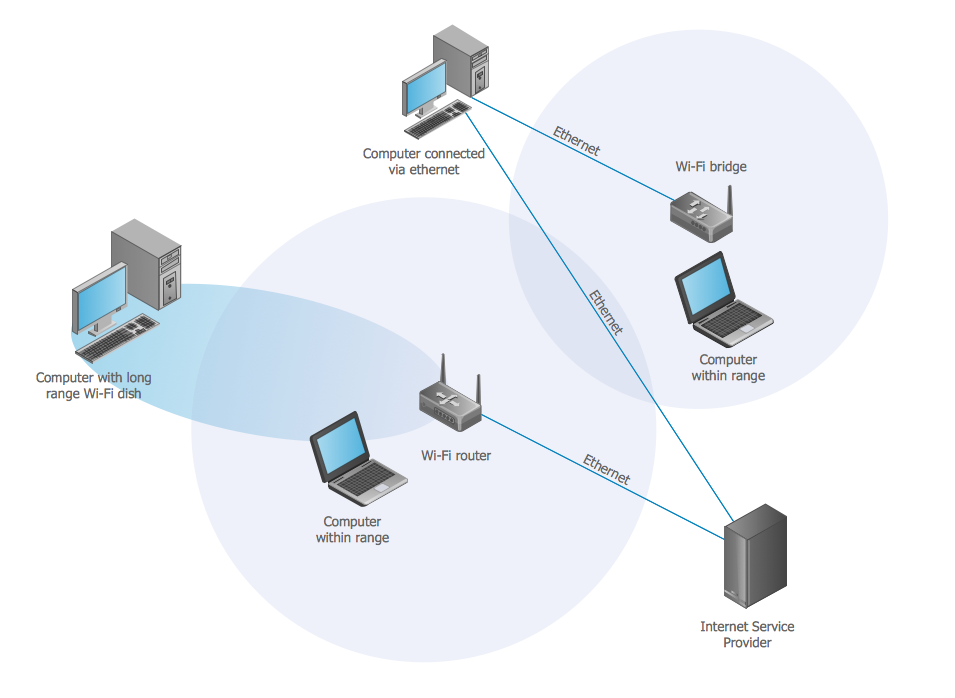
Before you begin, make sure your wireless router's settings are configured correctly. Check the manufacturer's documentation or contact their support team if you're unsure about the settings. Ensure that the wireless mode is set to "Wireless G" (802.11g) and the network name (SSID) is set to the one you want to use.
Step 1.1: Check the Wireless Channel
Wireless routers often default to the same wireless channel, which can cause interference. Use a tool like Wi-Fi Analyzer to scan for nearby networks and identify a less crowded channel to use. This will help improve your network's performance and reduce interference from neighboring networks.
Step 1.2: Set the Wireless Security
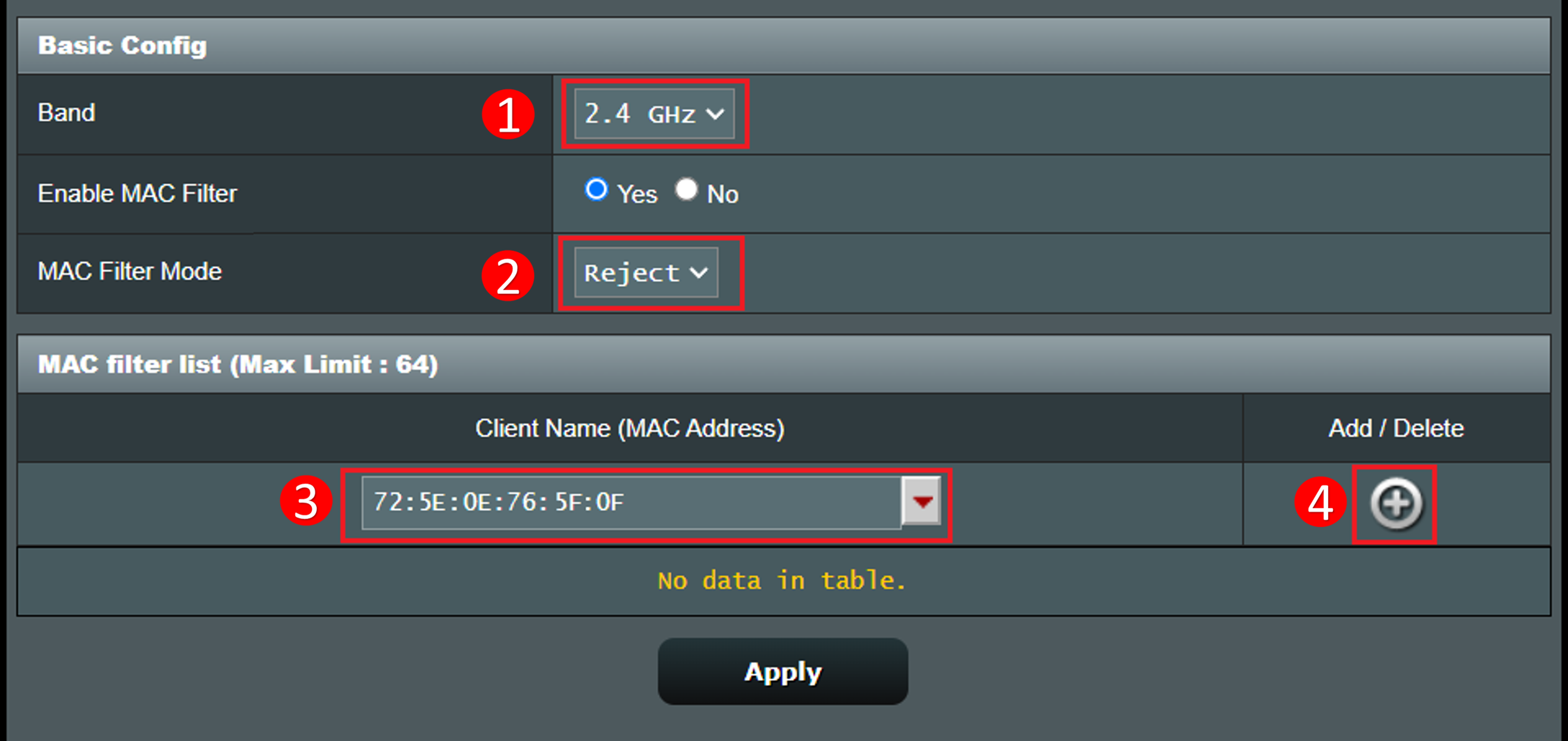
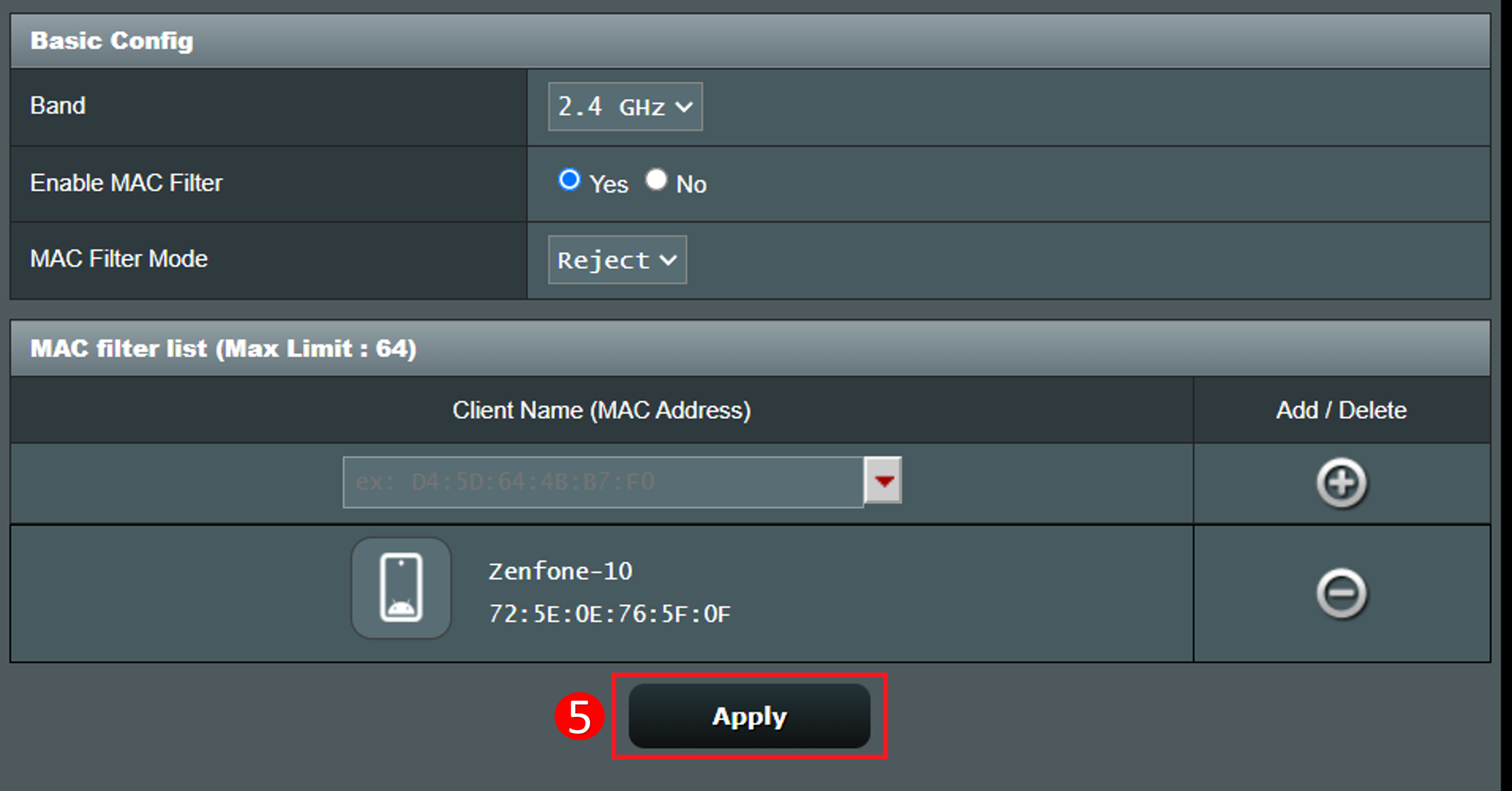
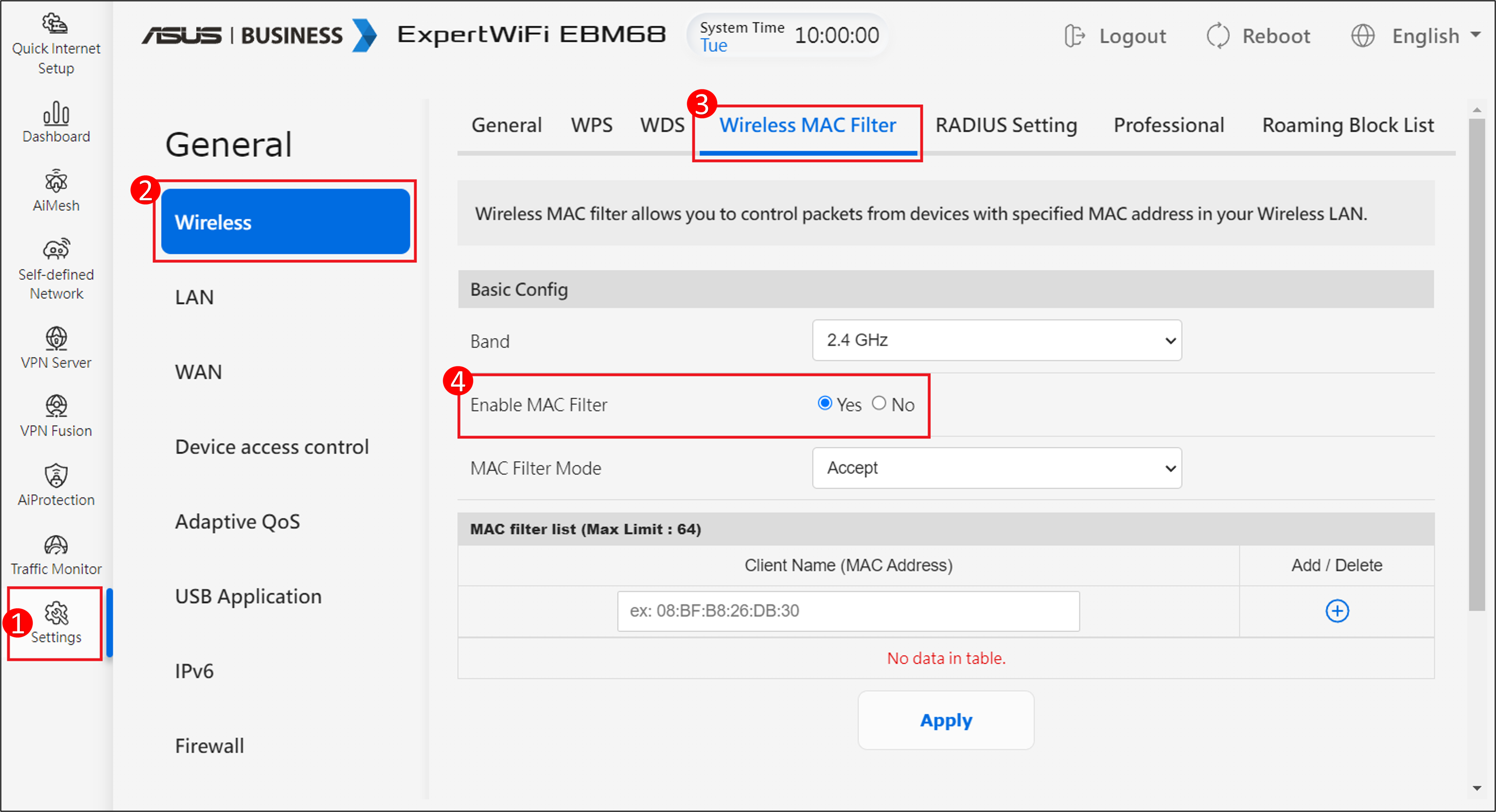
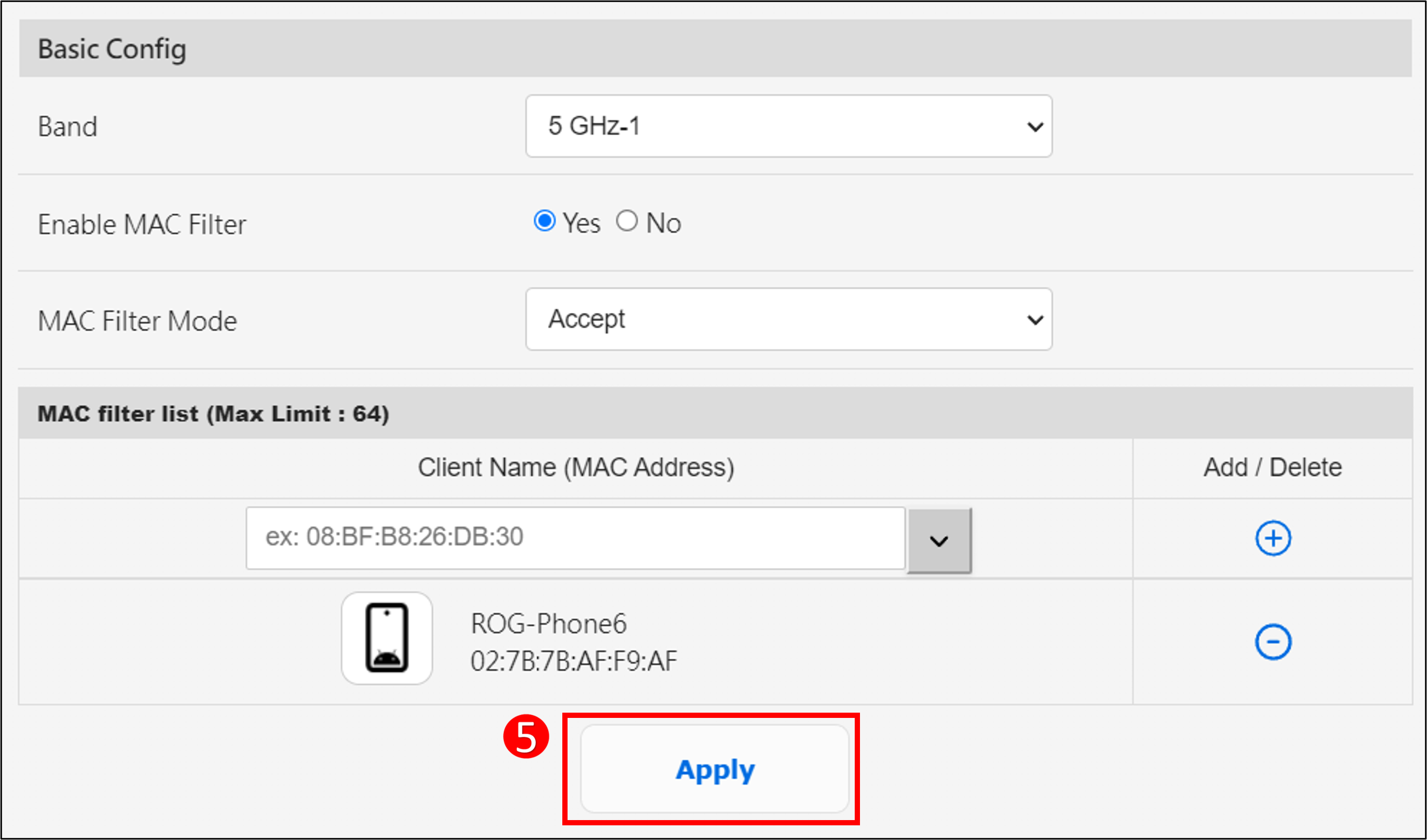
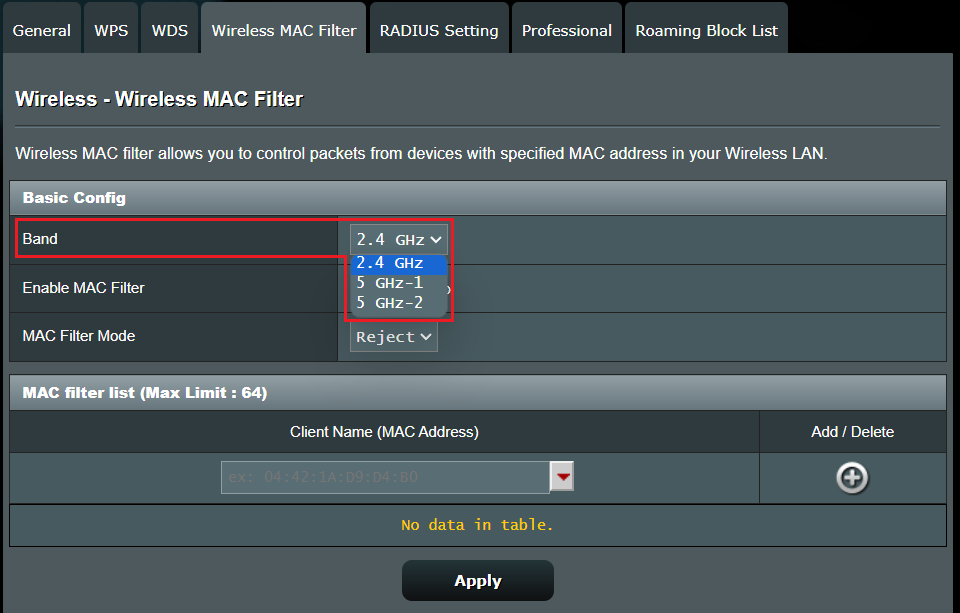
Wireless security is essential to prevent unauthorized access to your network. Set the wireless security to WPA2 (Wi-Fi Protected Access 2) or WPA (Wi-Fi Protected Access), and create a strong password. You can also enable MAC address filtering to restrict access to specific devices on your network.
Step 2: Connect Your Mac to the Wireless Network
Once you've configured your wireless router, it's time to connect your Mac to the network. Follow these steps:
Step 2.1: Click the Wi-Fi Menu Icon
Click the Wi-Fi menu icon in the top right corner of your Mac's screen. If you don't see the icon, click the Apple menu and select "System Preferences" then "Network."
Step 2.2: Select the Network
From the Wi-Fi menu, select your wireless network from the list of available networks. If you don't see your network, try restarting your router and Mac, then scan for available networks again.
Step 2.3: Enter the Network Password
Once you've selected your network, enter the network password to connect to the network. If you've enabled MAC address filtering, ensure that your Mac's MAC address is added to the allowed list.
Step 3: Configure Your Mac's Network Settings
After connecting to the wireless network, you may need to configure your Mac's network settings to ensure optimal performance. Follow these steps:
Step 3.1: Check the Network Type
Ensure that your Mac is set to use the correct network type (Wired or Wireless) and that the network settings are set to Automatic.
Step 3.2: Set the MTU (Maximum Transmission Unit)
Adjusting the MTU can help improve network performance. Set the MTU to a value of 1492 or higher, but not exceeding the maximum value set by your router.
Step 4: Secure Your Wireless Network
To secure your wireless network, follow these steps:
Step 4.1: Enable WPA2 Encryption
Ensure that WPA2 encryption is enabled on your wireless router. This will protect your network from unauthorized access.
Step 4.2: Set a Strong Password
Create a strong password for your wireless network. Avoid using easily guessable information like your name or birthdate.
Step 4.3: Enable MAC Address Filtering
Enable MAC address filtering to restrict access to specific devices on your network. This will help prevent unauthorized access to your network.
Conclusion
Setting up a Wireless G network with your Mac can be a straightforward process if you follow these steps. Ensure that your wireless router is configured correctly, connect your Mac to the network, configure your Mac's network settings, and secure your wireless network to prevent unauthorized access. By following these steps, you'll be able to enjoy a reliable and secure wireless connection with your Mac.



.png "Set up a network service on Mac - Apple Support")