Wireless G Network Security Setup for Home Use: A Comprehensive Guide
In today's digital age, securing your home Wi-Fi network is more important than ever. With the rise of cyber threats and hacking, it's essential to take steps to protect your devices and data from unauthorized access. This guide will walk you through a Wireless G network security setup for home use, providing you with practical and non-technical steps to boost your network's security.
Assess Your Network's Security Posture
Before you start securing your Wireless G network, it's essential to assess its current security posture. This involves taking stock of your devices, router, and internet connection. Make sure you have a clear understanding of what you have and how it's configured.
Start by identifying all the connected devices on your network, including computers, smartphones, tablets, smart TVs, and IoT devices. Next, check your router's configuration and ensure it's set up securely. You can do this by accessing your router's settings page using a computer or smartphone connected to the network.
Change Your Network Name and Password
One of the most critical steps in securing your Wireless G network is changing the default network name (SSID) and password. This will prevent unauthorized access to your network. Use a strong and unique password that's at least 12 characters long and includes a mix of uppercase and lowercase letters, numbers, and special characters.
When changing your network name and password, make sure to also update any devices that connect to your network. This includes smart home devices, gaming consoles, and streaming devices.
Enable WPA2 Encryption
WPA2 encryption is a vital security feature that encrypts data transmitted over your network. To enable WPA2 encryption on your router, look for the "Wireless Settings" or "Network Settings" page. Search for "Encryption" or "Security" and select WPA2 as the encryption method.
Additionally, consider setting up WPA3 encryption, which offers improved security features compared to WPA2. However, not all devices support WPA3, so you may need to verify compatibility before enabling it.
Create a Guest Network

A guest network is a separate wireless network that you can create for visitors or IoT devices. This isolates them from your main network, preventing them from accessing sensitive data and devices.
To create a guest network, look for the "Advanced Settings" or "Guest Network" page on your router. Enable the guest network feature and set its SSID, password, and encryption settings. You can also configure QoS (Quality of Service) settings to prioritize traffic on the guest network.
Segment Your Network
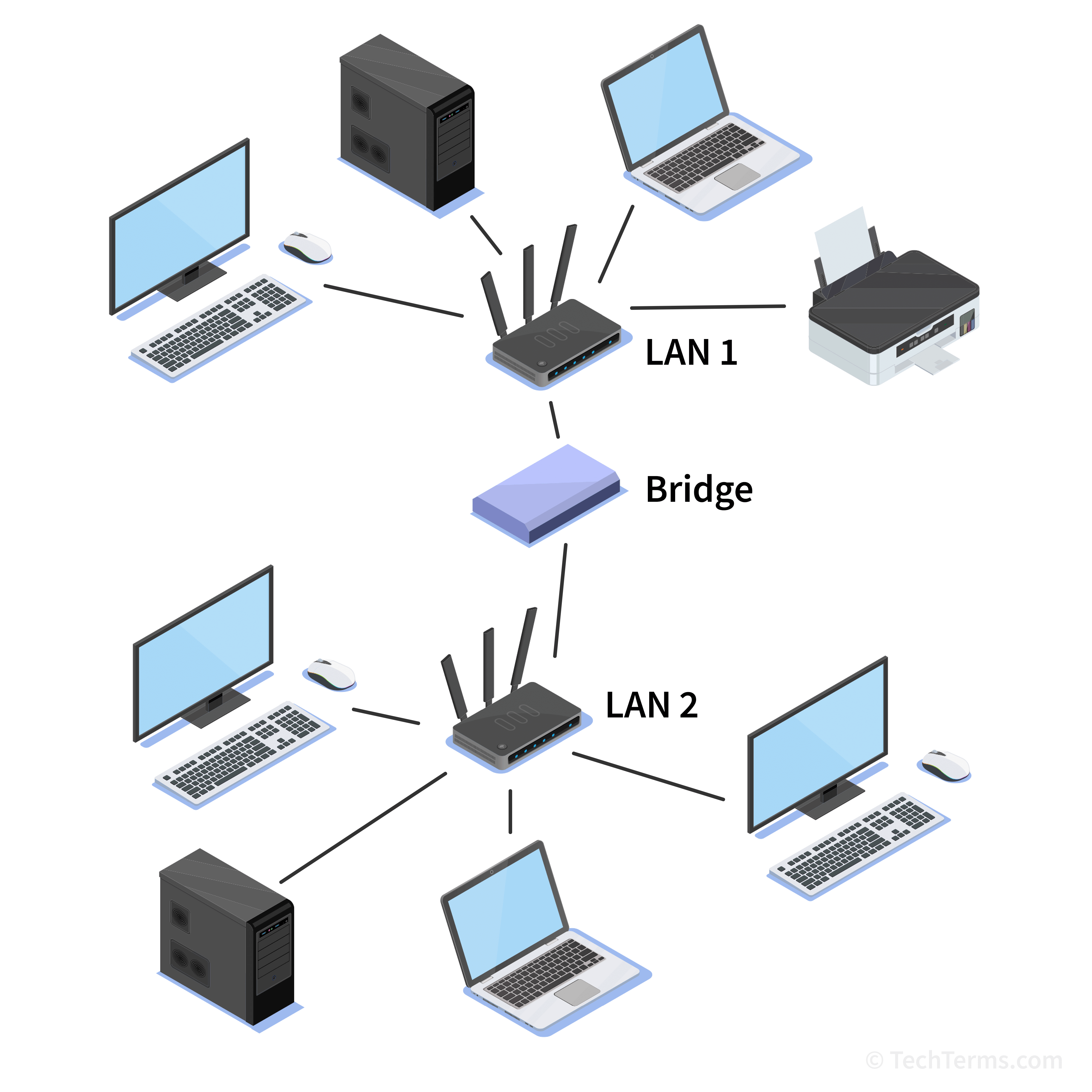
Segmenting your network involves dividing it into smaller, isolated sub-networks. Each sub-network has its own IP address and security settings, which allows you to isolate sensitive devices and data from less secure devices.
To segment your network, you'll need to configure virtual LAN (VLAN) settings on your router. This will create separate sub-networks for devices with different levels of security or functionality.
Implement Network Access Control (NAC)
Network Access Control (NAC) is a security feature that controls who can access your wireless network. With NAC, you can configure rules to allow or deny access to specific devices or groups of devices based on their MAC address, IP address, or other criteria.
To implement NAC, look for the "Security Settings" or "Access Control" page on your router. You can set up custom policies to control access to your network and prevent unauthorized devices from connecting.
Regularly Update Your Router's Firmware and Software
Regularly updating your router's firmware and software is essential to ensure you have the latest security patches and features. Check your router manufacturer's website for firmware updates and follow the installation instructions carefully.