G Router Configuration and Troubleshooting: A Comprehensive Guide
Introduction
Configuring and troubleshooting a G router can be a daunting task, but with the right guidance, it can be a breeze. In this article, we will explore the intricacies of G router configuration and troubleshooting, providing you with a comprehensive guide to ensure your internet connection remains stable and reliable.Understanding Your G Router
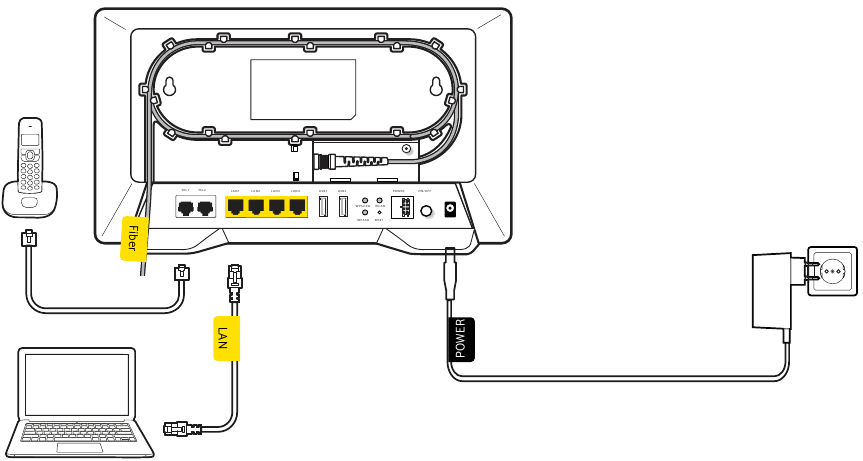
Before diving into configuration and troubleshooting, it's essential to understand the basics of your G router. The Linksys Wireless-G Broadband Router, for example, allows you to access the internet via a wireless connection, broadcast at up to 54 Mbps, or through one of its four switched ports. You can also use the router to share resources such as computers, printers, and files.Configuring Your G Router
Configuring your G router involves setting up the basic settings, such as the wireless network name (SSID), password, and network configuration. Here are the steps to follow:- Access the router's web-based setup page by typing its IP address (usually 192.168.1.1) in your web browser.
- Enter the default administrator username and password to log in to the router.
- Change the administrator username and password to secure your router.
- Set up the wireless network name (SSID) and password.
- Configure the network settings, including the IP address, subnet mask, and default gateway.
Troubleshooting Your G Router

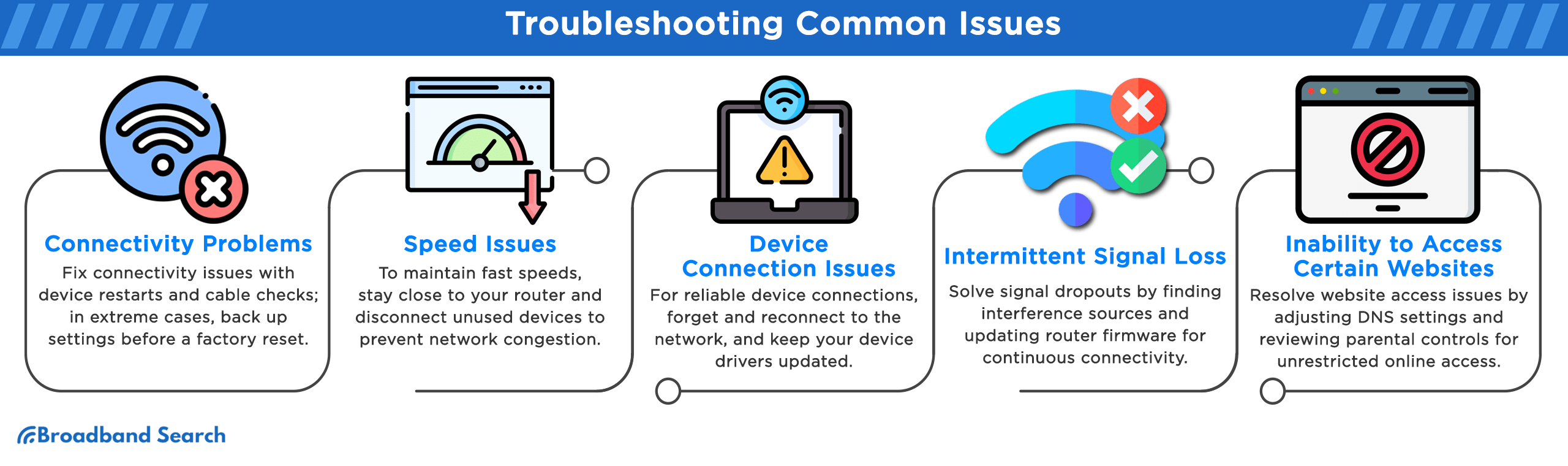
- Router not turning on:
- Check the power cord and ensure it's properly plugged in.
- Check the router's power button and ensure it's not disabled.
- Router not connecting to the internet:
- Check the router's IP address and ensure it's not conflicting with other devices on the network.
- Check the wireless network settings and ensure they match the settings on your computer or device.
- Router not broadcasting the SSID:
- Check the router's wireless settings and ensure the SSID is enabled.
- Check the router's wireless channel and ensure it's not overlapping with other devices on the network.
Restoring Default Settings
If you're having trouble with your G router, you may need to restore it to its default settings. Here's how:- Access the router's web-based setup page by typing its IP address (usually 192.168.1.1) in your web browser.
- Click on the "Administration" tab and select "Restore Factory Settings."
- Confirm that you want to restore the default settings and wait for the process to complete.



.png "How to Troubleshoot a Router: Complete Guide for Beginners")