Setup Wireless Guest Network with Router: A Step-by-Step Guide
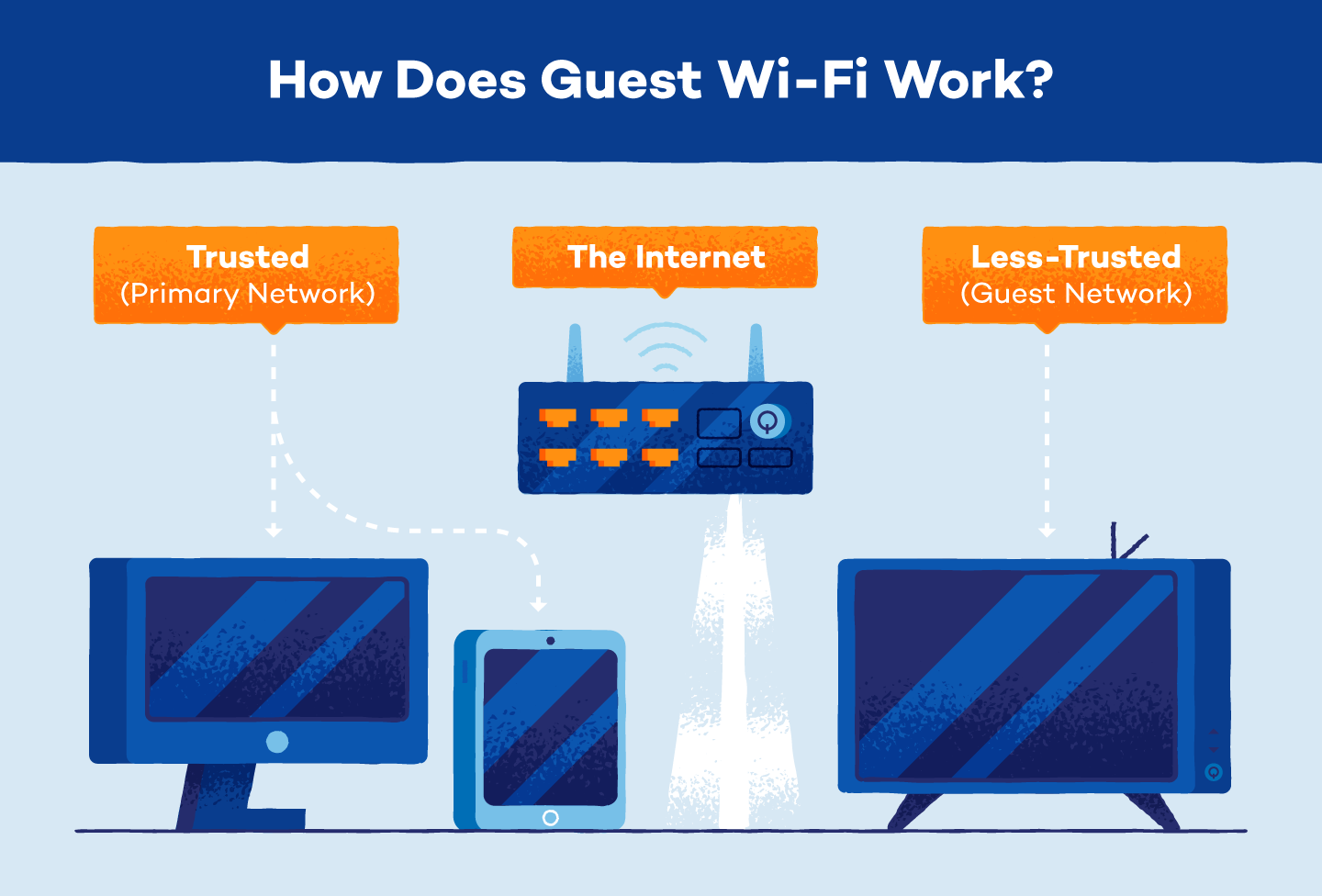
Looking to setup a secure guest Wi-Fi network? Follow our step-by-step guide to configure it quickly and easily for your visitors. A guest network provides a separate Wi-Fi connection for visitors to access the internet without compromising the security of your main network.
Why Setup a Guest Network?
- Secures your main network by preventing visitors from accessing sensitive information
- Provides a separate network for guests, reducing the risk of data breaches
- Easy to manage and configure on most routers
Requirements
To setup a wireless guest network with your router, you'll need:
- Access to your router's admin interface
- A computer or mobile device connected to your router
- Knowledge of your router's wireless settings
Step 1: Access Your Router's Admin Interface
Open a web browser and type the IP address of your router (usually 192.168.1.1 or 192.168.0.1) to access the admin interface. Log in with your admin username and password (or try the default login credentials provided by the manufacturer).
Step 2: Create a New Guest Network
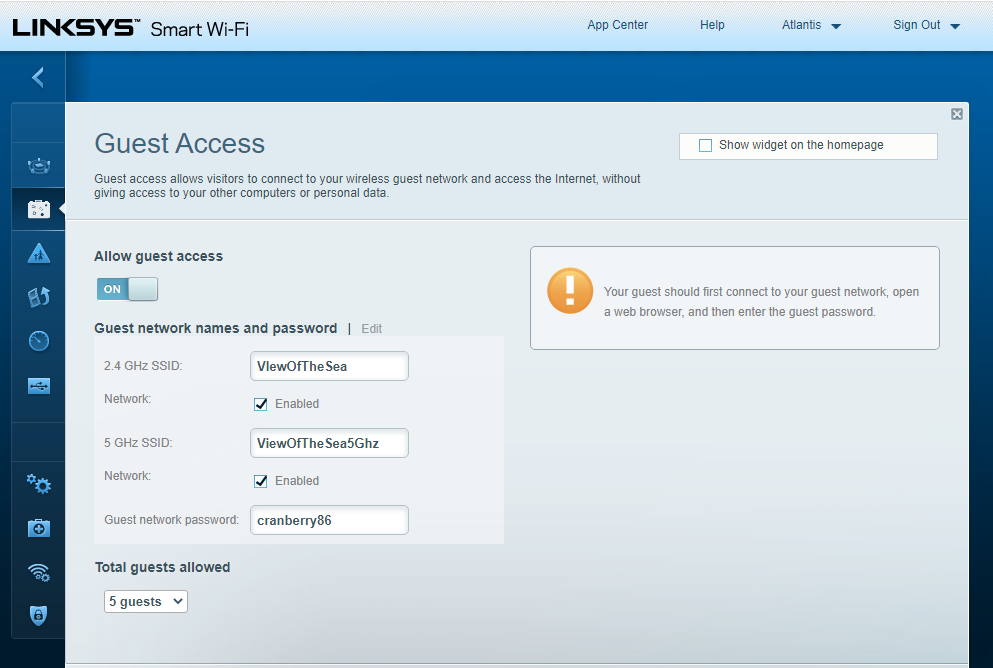
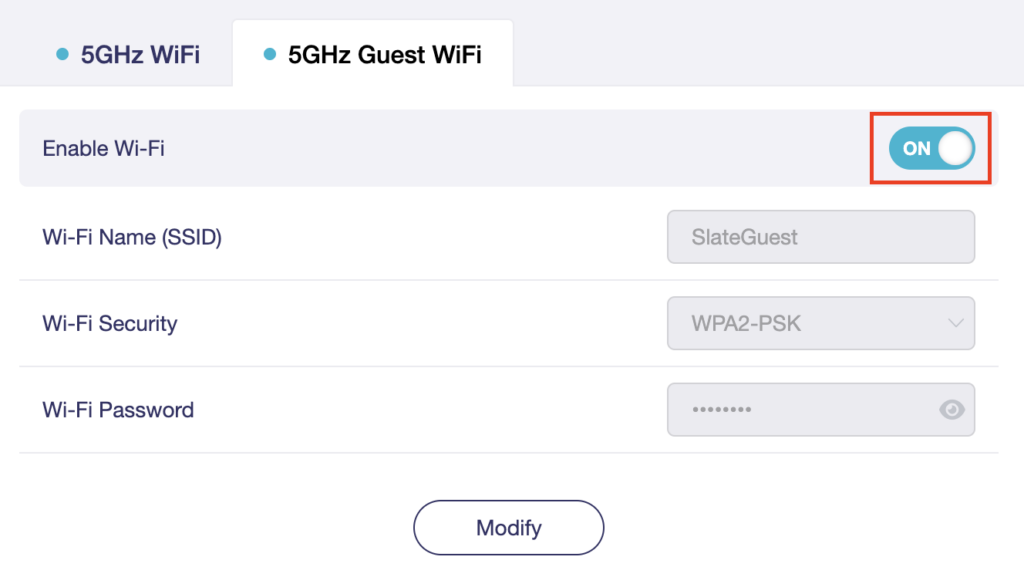
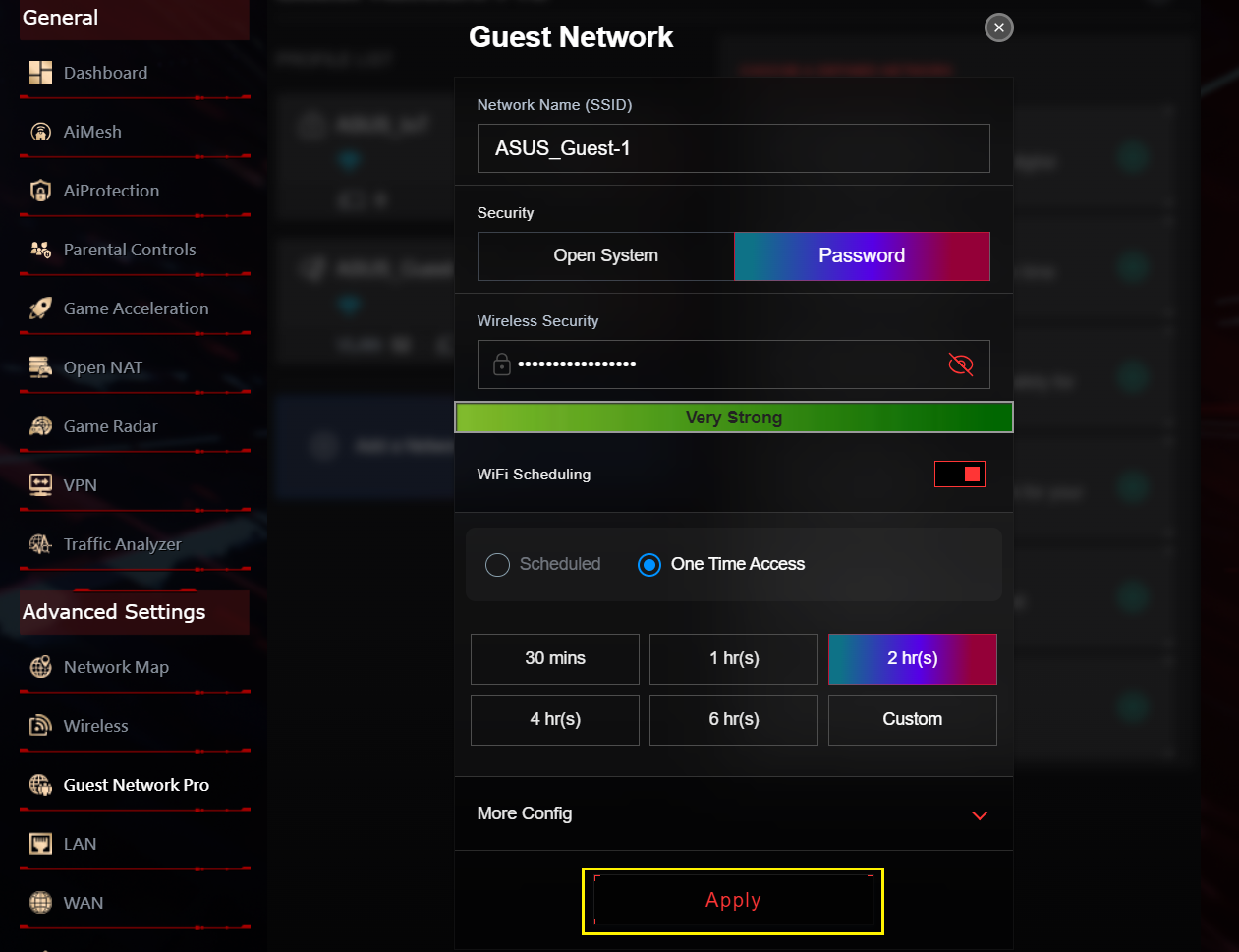
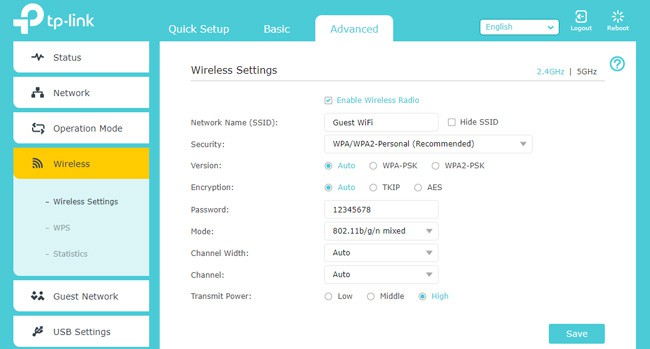
Once logged in, navigate to the guest network settings and create a new network with its own SSID (network name) and password. This will separate the guest network from your main network, ensuring visitors can't access your sensitive data.
- Set the guest network name (SSID) and password
- Choose the frequency band (2.4GHz or 5GHz)
- Configure the guest network's security settings (WPA2 or WPA3)
Step 3: Configure Guest Network Settings
Adjust your guest network settings to suit your needs:
- Determine the amount of bandwidth allocated to the guest network
- Set up time limits or schedules for guest network access
- Configure wireless bandwidth control and guest network priority
Step 4: Save Changes and Test the Guest Network
Save your changes and restart your router to apply the new settings. Connect to the guest network using a device to test the connection and ensure it's working as intended.
Conclusion
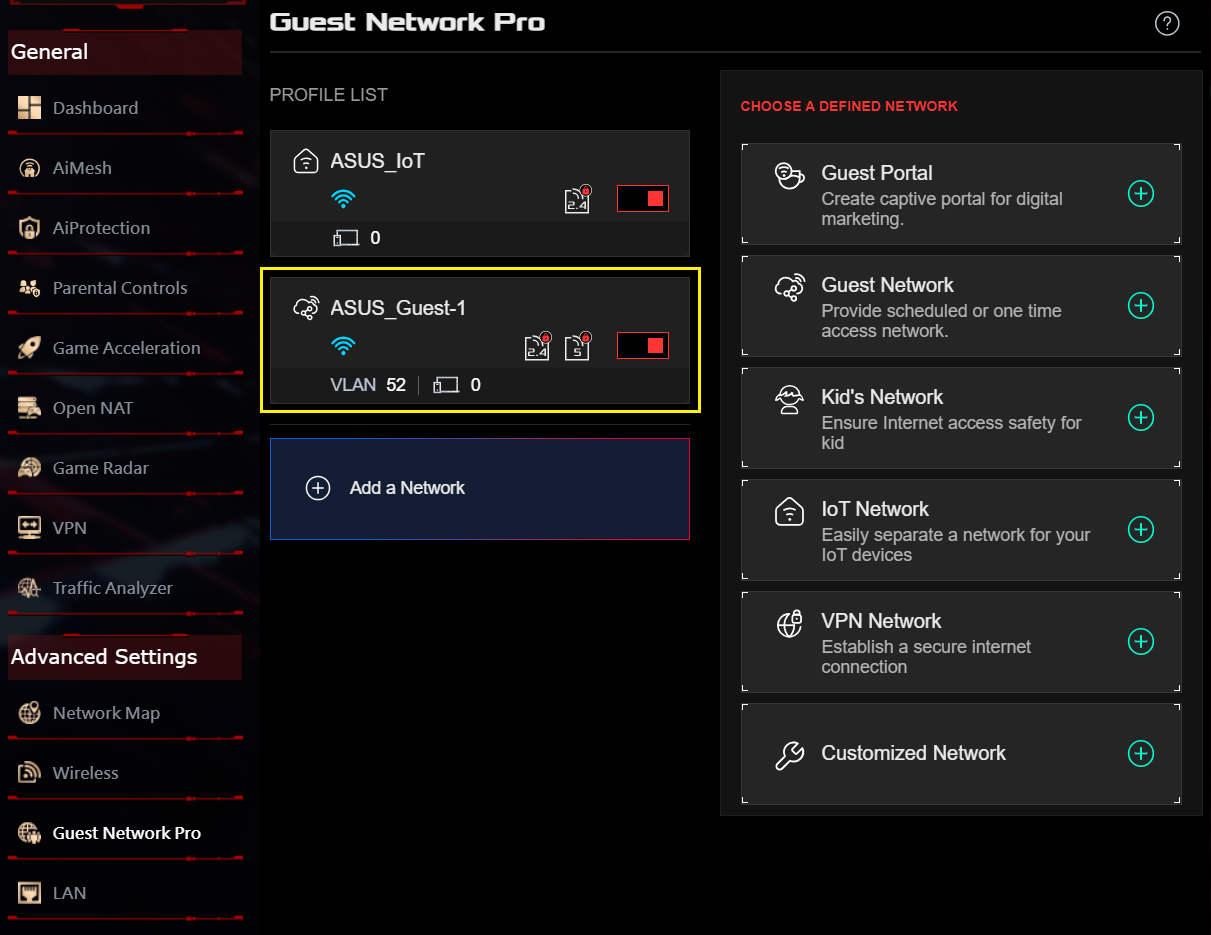
Setting up a guest Wi-Fi network with your router adds an extra layer of security and convenience for your guests. By following these steps, you can easily create a secure and separate network for visitors, reducing the risk of data breaches and ensuring a hassle-free experience for your guests.
Guest Network: What You Need to Know
A guest network is a separate Wi-Fi network that provides a secure connection for visitors to access the internet without compromising your main network's security. By separating the guest network from your main network, you can protect sensitive data and prevent unauthorized access.
Benefits of Guest Networks
- Provides a secure connection for visitors
- Does not compromise the security of your main network
- Easy to manage and configure
Common Router Guest Network Settings
When configuring your guest network, consider the following settings:
- Security (WPA2 or WPA3)
- Frequency band (2.4GHz or 5GHz)
- Bandwidth allocation
- Time limits and schedules
- Wireless bandwidth control and priority
How to Set Up a Guest Network with Your Router: Frequently Asked Questions
Q: What is a guest network?
A: A guest network is a separate Wi-Fi network that provides a secure connection for visitors to access the internet without compromising your main network's security.
Q: Why do I need a guest network?
A: A guest network is necessary to secure your main network by preventing visitors from accessing sensitive information.
Q: How do I setup a guest network with my router?
A: See our step-by-step guide above to learn how to setup a guest network with your router.
Conclusion
Setting up a guest Wi-Fi network with your router enhances your wireless network's security and provides a convenient experience for your visitors. By following the steps outlined in this guide, you can create a secure and separate network for guests, reducing the risk of data breaches and protecting your sensitive information.

![[Wireless Router] How to set up Guest Network on ASUS Router?](https://internetjin.com/wp-content/uploads/2023/02/Artboard-1-copy-2-1.jpg "[Wireless Router] How to set up Guest Network on ASUS Router?")
![How to Set Up a Guest WiFi Network [Step-by-Step Guide] - Reolink](https://hi2wireless.com/wp-content/uploads/2020/11/Create-a-Guest-Network.jpg "How to Set Up a Guest WiFi Network [Step-by-Step Guide] - Reolink")