WRT54G Router Configuration Guide: A Comprehensive Step-by-Step Tutorial
The Linksys WRT54G router is a popular and reliable wireless broadband router that offers a range of features to enhance your home or office internet connection. In this comprehensive guide, we will walk you through the process of setting up and configuring your WRT54G router, covering everything from initial setup to advanced configuration options.
Before You Begin
Before you start configuring your WRT54G router, make sure you have the following:
- The WRT54G router itself
- A computer with a web browser (Internet Explorer, Mozilla Firefox, Google Chrome, etc.)
- A network cable (RJ-45) to connect the router to your modem
- A wireless adapter or Wi-Fi card (if you want to set up wireless networking)
Step 1: Unbox and Physically Set Up the Router
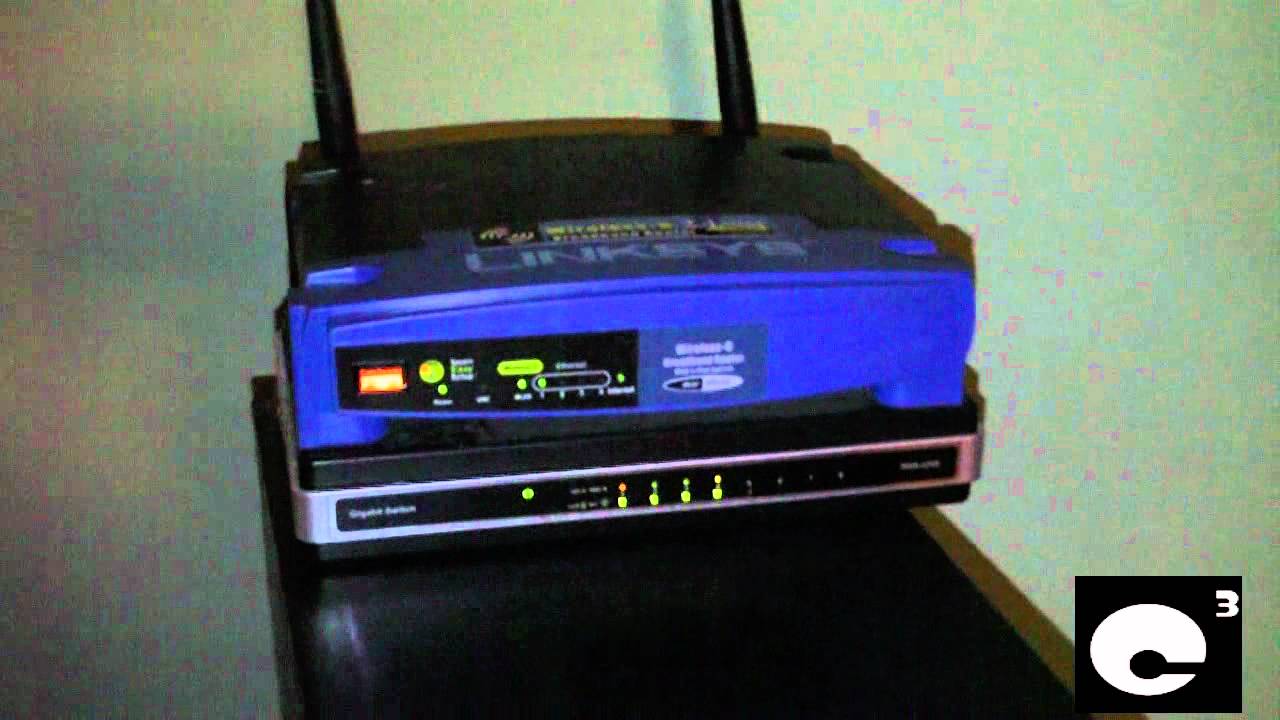
Unbox your WRT54G router and physically set it up in a central location in your home or office. Connect the power cord and turn on the router. Make sure the router is positioned in an area where it can receive a strong signal from your modem.
Step 2: Connect to the Router's Web Interface
Open a web browser on your computer and type the IP address of the router's web interface (192.168.1.1) in the address bar. Press Enter to connect to the router's web interface. You will be prompted to enter a username and password. The default username and password are both "admin." Log in to the router's web interface.
Step 3: Configure the Router's Basic Settings
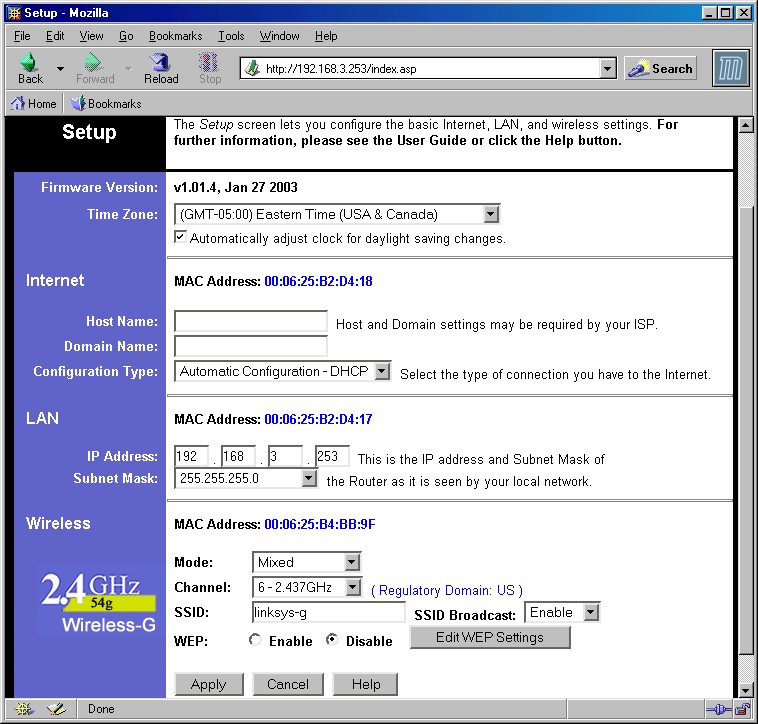
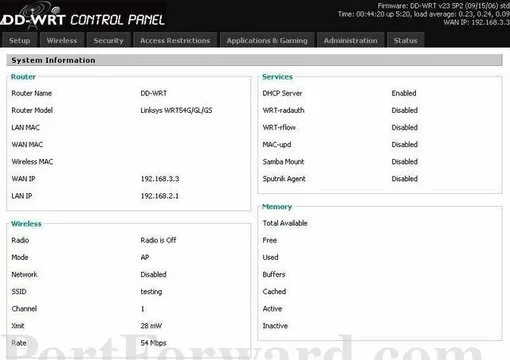
Once logged in, you will be taken to the router's web interface. Here, you can configure the router's basic settings, including:
- Router's IP address and subnet mask
- Default gateway and DNS server settings
- Time zone and date and time settings
To access these settings, click on the "Setup" tab at the top of the page and select the relevant options. Make sure to save your changes after configuring these settings.
Step 4: Configure Wireless Settings
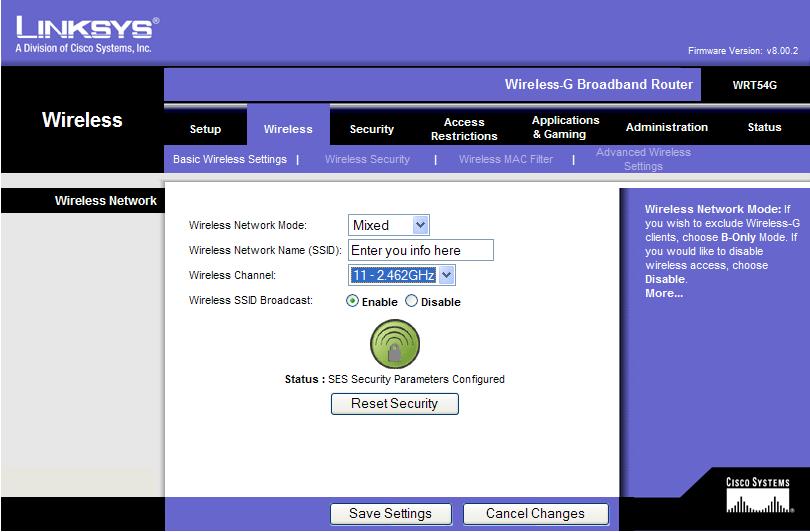
If you want to set up wireless networking, you will need to configure the router's wireless settings. Click on the "Wireless" tab at the top of the page and select the options as follows:

- Wireless network name (SSID)
- Wireless channel (auto-select or manual selection)
- Wireless encryption (WEP, WPA, or WPA2)
- Password and wireless key settings
Make sure to save your changes after configuring these settings.
Step 5: Configure Advanced Settings
Once you have configured the router's basic and wireless settings, you can move on to configuring advanced settings. These include:
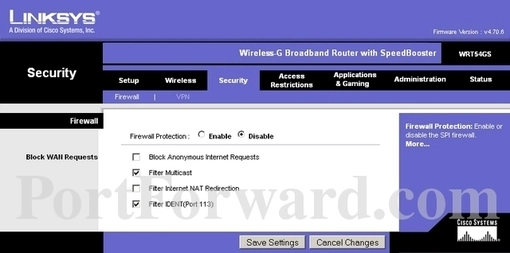
- Firewall settings
- Quality of Service (QoS) settings
- Advanced wireless settings (such as wireless isolation and wireless broadcast settings)
To access these settings, click on the "Advanced" tab at the top of the page and select the relevant options. Make sure to save your changes after configuring these settings.
Step 6: Test Your Connection
After configuring all the settings, test your internet connection to ensure that it is working correctly. Open a web browser and navigate to a website. If the website loads, your internet connection is working correctly.
Conclusion
Configuring your WRT54G router is a straightforward process that requires careful attention to detail. By following the steps outlined in this guide, you should be able to set up and configure your router successfully. Remember to save your changes after configuring each setting, and don't hesitate to consult the user manual if you encounter any issues.
Additional Resources
For additional resources and troubleshooting tips, refer to the following:
- Linksys WRT54G user manual
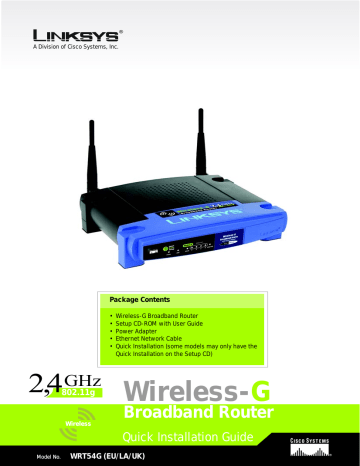
- Linksys WRT54G quick installation guide
- Linksys support website