Configuring a G Wireless Router for Guest Network: A Comprehensive Guide
Guest networks are a fantastic feature offered by many Wi-Fi routers, allowing visitors to access the internet without compromising the security of your main network. In this article, we'll walk you through the process of configuring a guest network on your G wireless router, ensuring a secure and reliable connection for your visitors.
Introduction to Guest Networks
A guest network is a separate network specifically designed for visitors, providing secure access to the internet without revealing your primary Wi-Fi password. This feature is available on most modern routers, including G wireless routers. By setting up a guest network, you can protect your main network from potential security threats and ensure a faster internet experience for your visitors.
Why Configure a Guest Network?
Configuring a guest network offers numerous benefits, including:
- Enhanced security: By isolating your guest network from your main network, you reduce the risk of malware and unauthorized access.
- Improved performance: By limiting access to your main network, you can optimize bandwidth usage and ensure a faster internet experience for your visitors.
- Convenience: Guest networks allow visitors to connect to the internet without requiring access to your primary Wi-Fi password.
Step-by-Step Guide to Configuring a Guest Network on Your G Wireless Router
Configuring a guest network on your G wireless router is a relatively straightforward process. Follow these steps:
Step 1: Access Your Router Settings
Open a web browser and type the IP address of your router in the address bar. The default IP address is usually 192.168.0.1 or 192.168.1.1. Log in to your router using your administrator credentials.
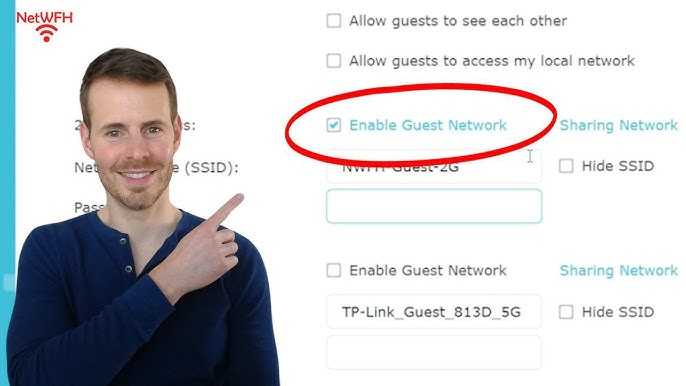
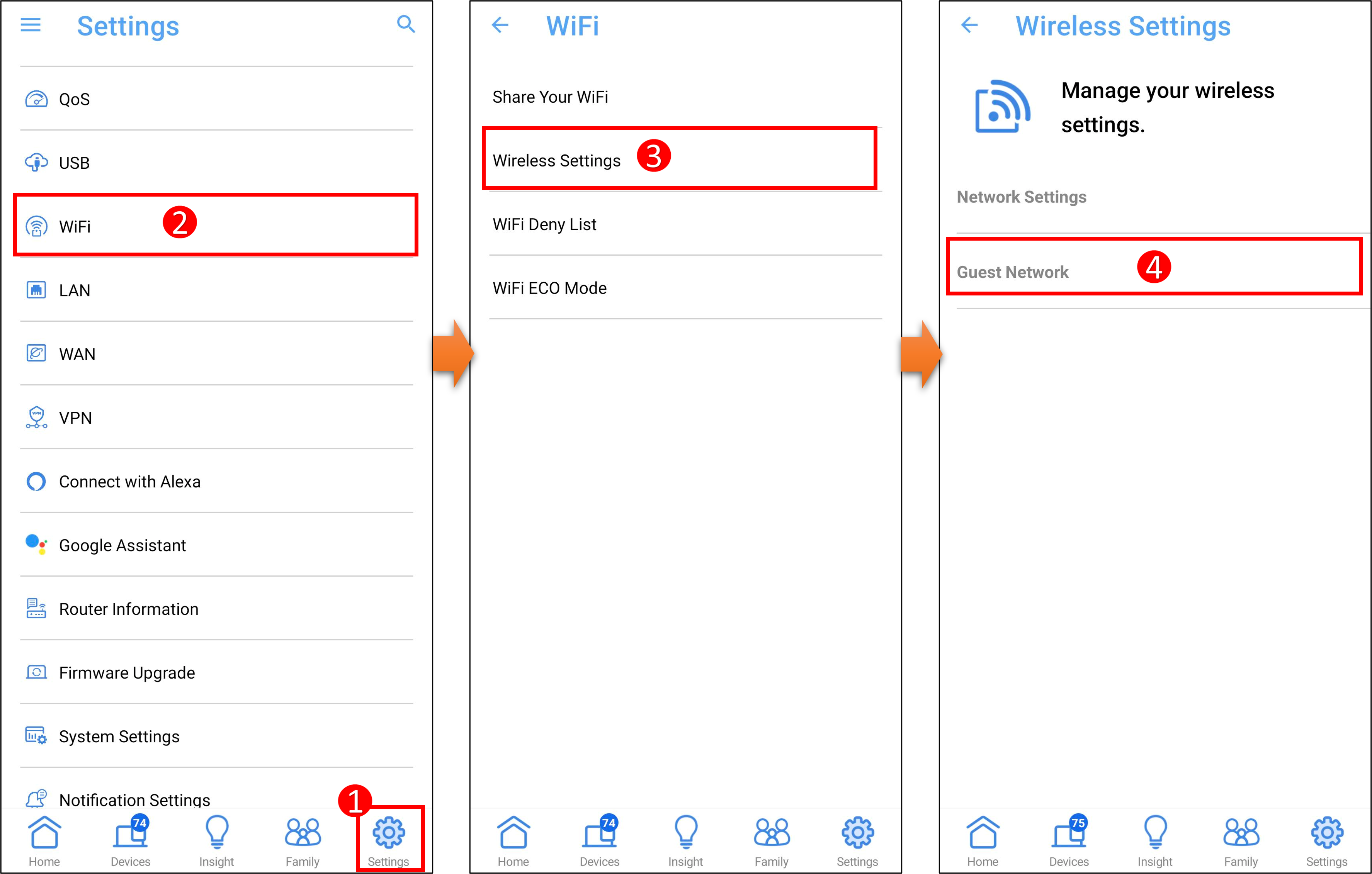
Step 2: Enable Guest Network
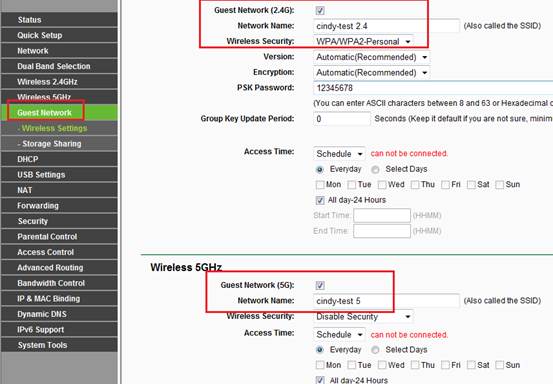
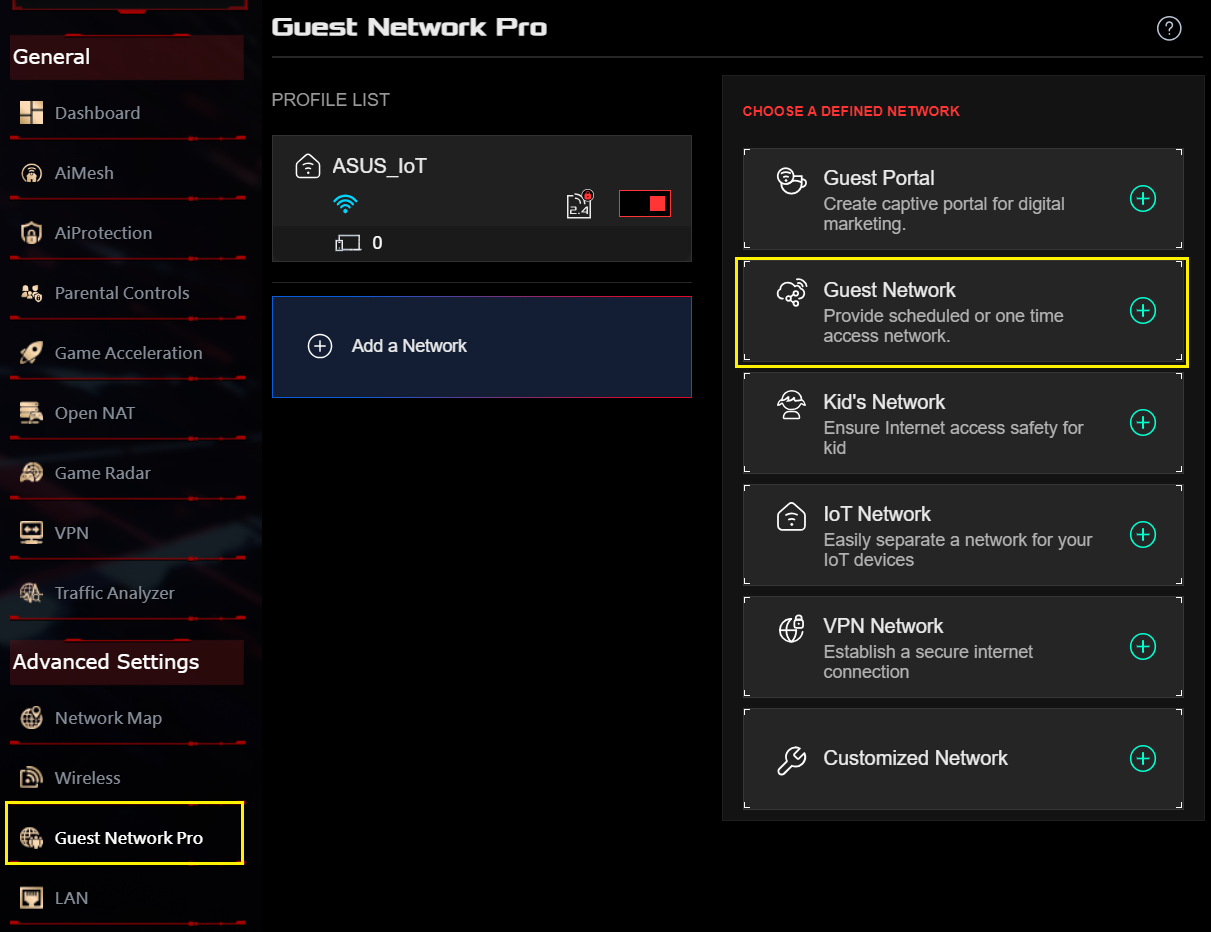
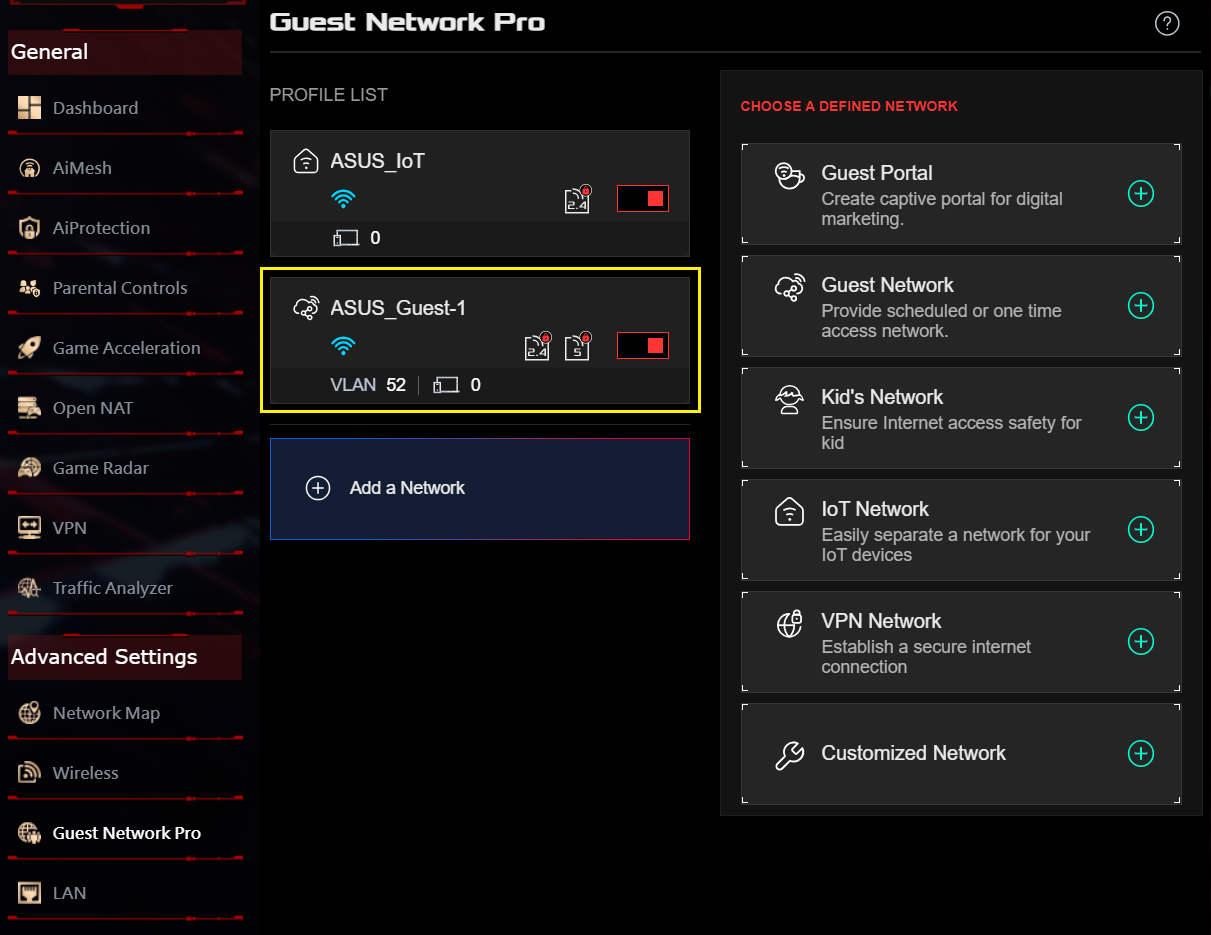
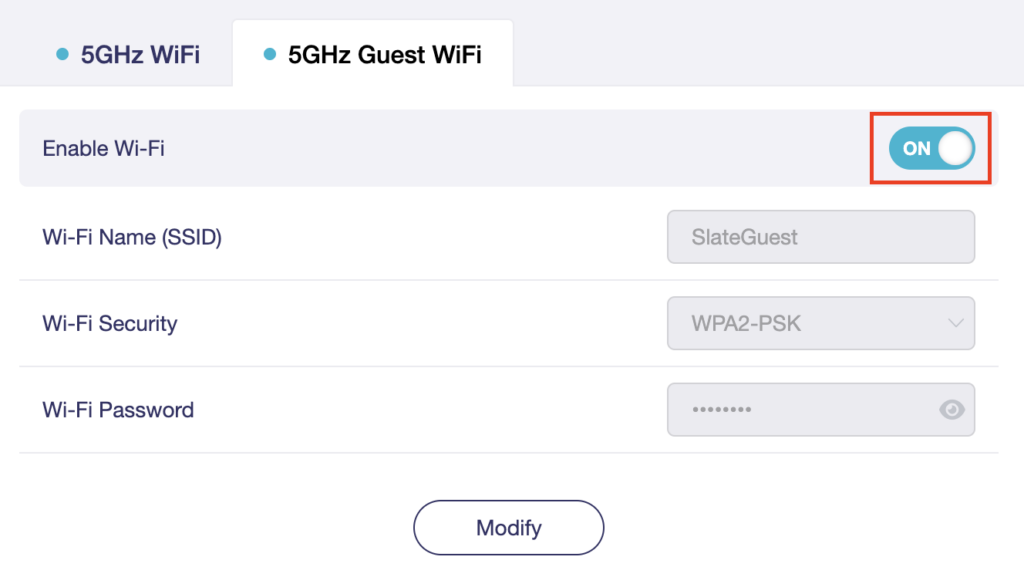
Locate the wireless settings section of your router and look for the "Guest Network" or "Visitor Network" option. Enable this feature by toggling the switch or clicking the button.
Step 3: Configure Guest Network Settings

Customize the settings for your guest network, including:
- SSID (Network Name): Give your guest network a unique name that distinguishes it from your main network.
- Password: Set a separate password for your guest network to ensure secure access.
- Wireless Security: Choose the type of security you want to use, such as WPA2-Personal.
Step 4: Save and Apply Changes
Save all changes and apply them to your router. Your guest network should now be active and configured.
Additional Tips and Considerations
Here are a few additional tips to keep in mind when setting up a guest network:
- Use a separate SSID and password for your guest network to ensure secure access.
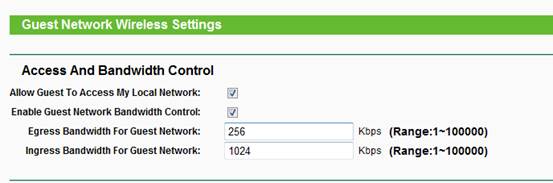
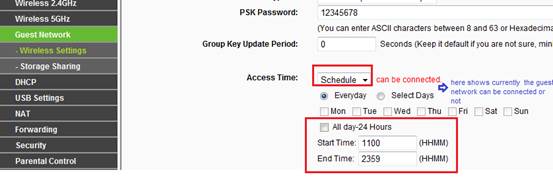
- Limit the bandwidth of your guest network to prevent your visitors from consuming too much bandwidth.
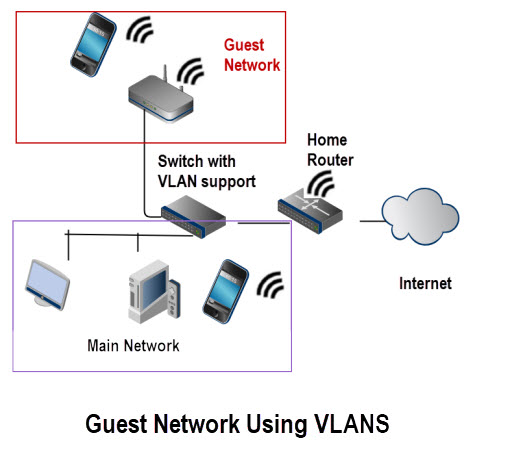
- Consider setting up a guest network with its own separate VLAN (Virtual Local Area Network) to further isolation and security.
Conclusion
Configuring a guest network on your G wireless router is a simple and effective way to enhance security, improve performance, and provide a convenient internet experience for your visitors. By following the steps outlined in this article, you'll be able to set up a secure and reliable guest network in no time.
Resources
For more information on configuring guest networks and securing your Wi-Fi router, check out the following resources:
- Linksys app: Learn how to configure the Guest Access feature on your Linksys Mesh router.
- RUCKUS Networks: Discover how to set up a guest network on your RUCKUS router.
- CenturyLink: Read this article from CenturyLink for step-by-step instructions on setting up a secure guest network.

![[Wireless Router] How to set up Guest Network on ASUS Router?](https://static.gl-inet.com/docs/router/en/4/tutorials/how_to_set_up_a_guest_network/click-guest-wifi.jpeg "[Wireless Router] How to set up Guest Network on ASUS Router?")


:max_bytes(150000):strip_icc()/001-guest-network-for-home-tutorial-818204-37a2774c65c945c69093d0c18262042c.jpg "How to Set up a Guest WiFi Network on Your Router")