Setup Internet Router at Office: A Comprehensive Guide
Setting up an internet router at the office is a crucial step in establishing a reliable and secure network for your business. With the increasing reliance on digital infrastructure, a well-configured internet router is essential for productivity and connectivity. In this article, we will guide you through the process of setting up an internet router at the office, highlighting the best practices for optimizing productivity and connectivity.
Choosing the Right Router
The first step in setting up an internet router at the office is to choose the right equipment. When selecting a router, consider the following factors:
- Speed: Ensure the router can handle the number of devices connected to it.
- Range: Choose a router with a strong signal that can cover the entire office.
- Security: Select a router with robust security features, such as WPA2 encryption.
- Ease of setup: Opt for a router with a user-friendly interface and easy setup process.
Setting Up the Router
Once you have chosen the right router, it's time to set it up. Here's a step-by-step guide to help you get started:
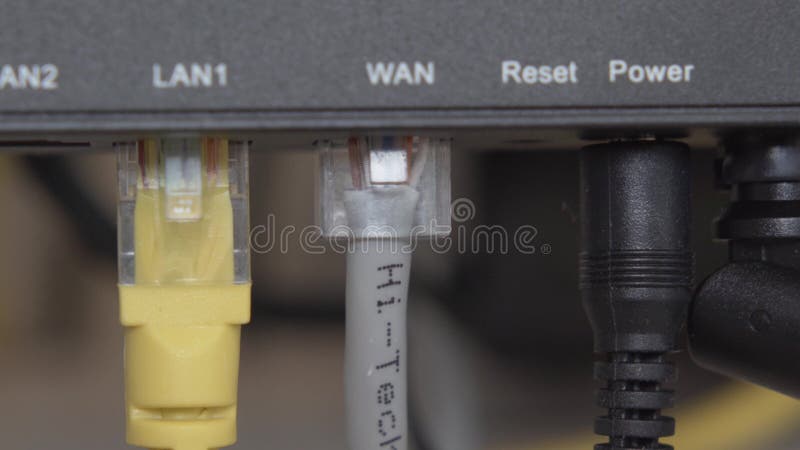
- Connect the router to the modem: Plug one end of an Ethernet cable into the modem's WAN/Internet port and the other end into the router's WAN/Internet port.
- Configure the router: Open a web browser, type in the router's IP address (check the manual), and follow the setup guide. This usually includes creating a network name (SSID) and password.
- Set up the network: Configure the router to connect to the internet and set up the wireless network.
- Secure the router: Change the default admin password, enable WPA2 encryption, and set up a guest network (if necessary).
Best Practices for Setting Up an Office Network
To ensure a smooth and secure office network, follow these best practices:
- Choose a central location for the router: Place the router in a central location to ensure an even signal distribution.
- Test the connections: Verify that all devices are connected to the network and functioning properly.
- Set up a guest network: Create a separate network for visitors and guests to ensure their devices are isolated from the main network.
- Regularly update the firmware: Keep the router's firmware up to date to ensure the latest security patches and features.
- Monitor the network: Regularly monitor the network for any issues or security threats.
Conclusion
Setting up an internet router at the office is a crucial step in establishing a reliable and secure network for your business. By choosing the right router, following the setup guide, and implementing best practices, you can ensure a smooth and productive office network. Remember to regularly update the firmware, monitor the network, and secure the router to maintain a secure and efficient office network.
Resources
For more information on setting up an office network, check out the following resources:
- TP-Link Archer BE900: A Wi-Fi 7 router with top-of-the-line specs, including four bands, eight networking ports, and two USB ports.
- Xfinity: Offers a comprehensive guide to setting up and configuring a router, including step-by-step instructions for wireless setup, security settings, and advanced configuration options.
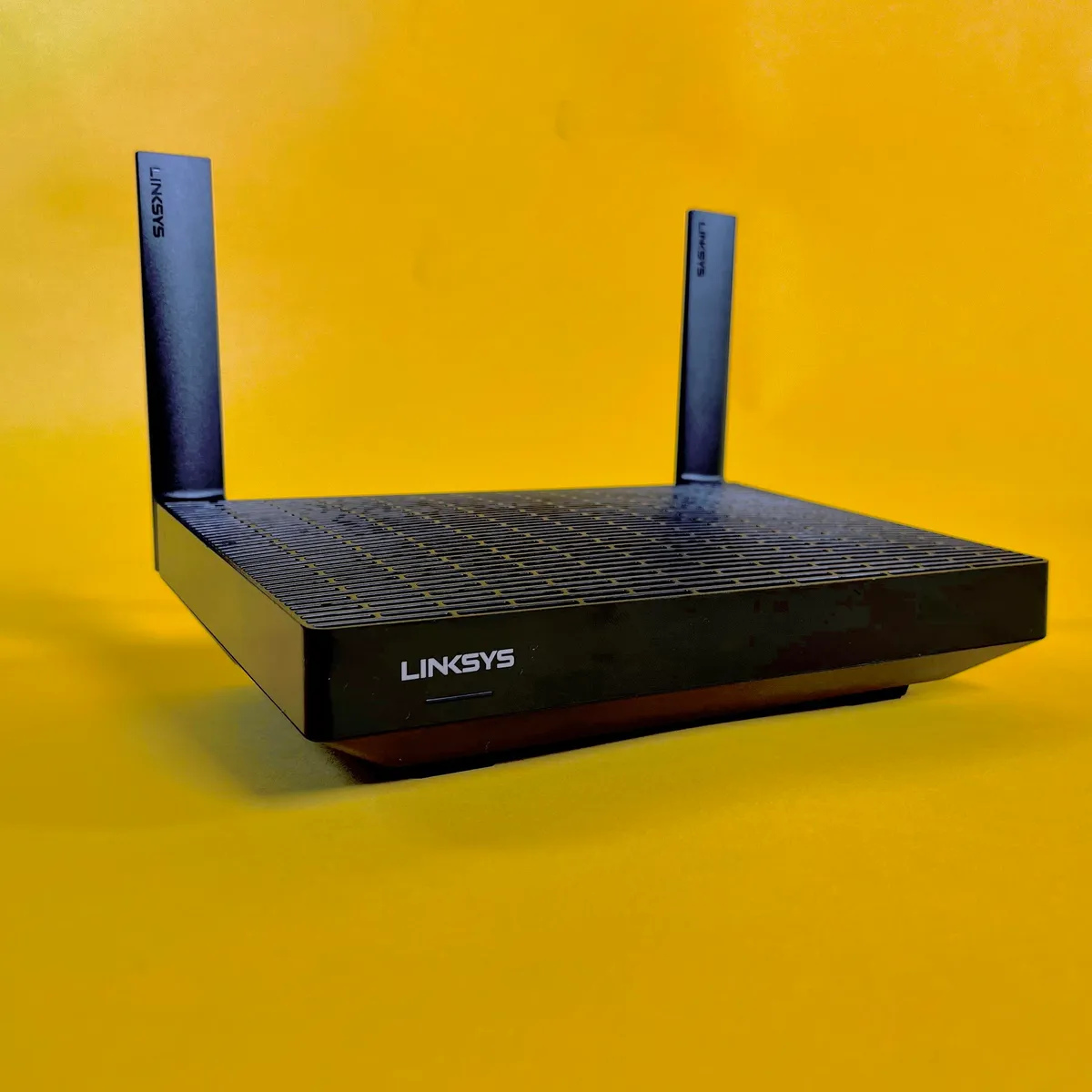
- Linksys: Provides a wireless ACRouter with built-in Linksys Intelligent Mesh Technology and speeds up to 1267 Mbps.
Recommendations
For a fast and reliable office network, consider the following recommendations:
- T-Mobile: Offers business routers powered by a reliable 5G network, giving companies fast, secure, and scalable connectivity.
- VTel: Provides the fastest Fiber-Optic Internet in Vermont up to 10 Gig, with Wi-Fi 6 enabled routers.
FAQs
For more information on setting up an office network, check out the following FAQs:
- What is a traditional Wi-Fi router? A traditional router acts as a central hub for internet connectivity.
- Do I need a special router for fiber internet? Yes, to use fiber internet, you'll need a dedicated router, known as a fiber-optic router.
- How do I set up a new router? Follow the setup guide provided by the manufacturer, or check out online resources for step-by-step instructions.