Configuring Router Firewall Settings: A Comprehensive Guide
Have you ever wondered how to configure your router's firewall settings to ensure your network is secure and protected from online threats? A firewall is a critical component of your network security, acting as a barrier between your internal network and the outside world. In this article, we will explore the importance of configuring router firewall settings and provide a step-by-step guide on how to do it.
Why Configure Router Firewall Settings?
Configuring router firewall settings is crucial to protect your network from various online threats, including:
- Viruses and malware
- Unauthorized access to your network
- Denial of Service (DoS) attacks
- Unauthorized data transfer
How to Access Router Firewall Settings
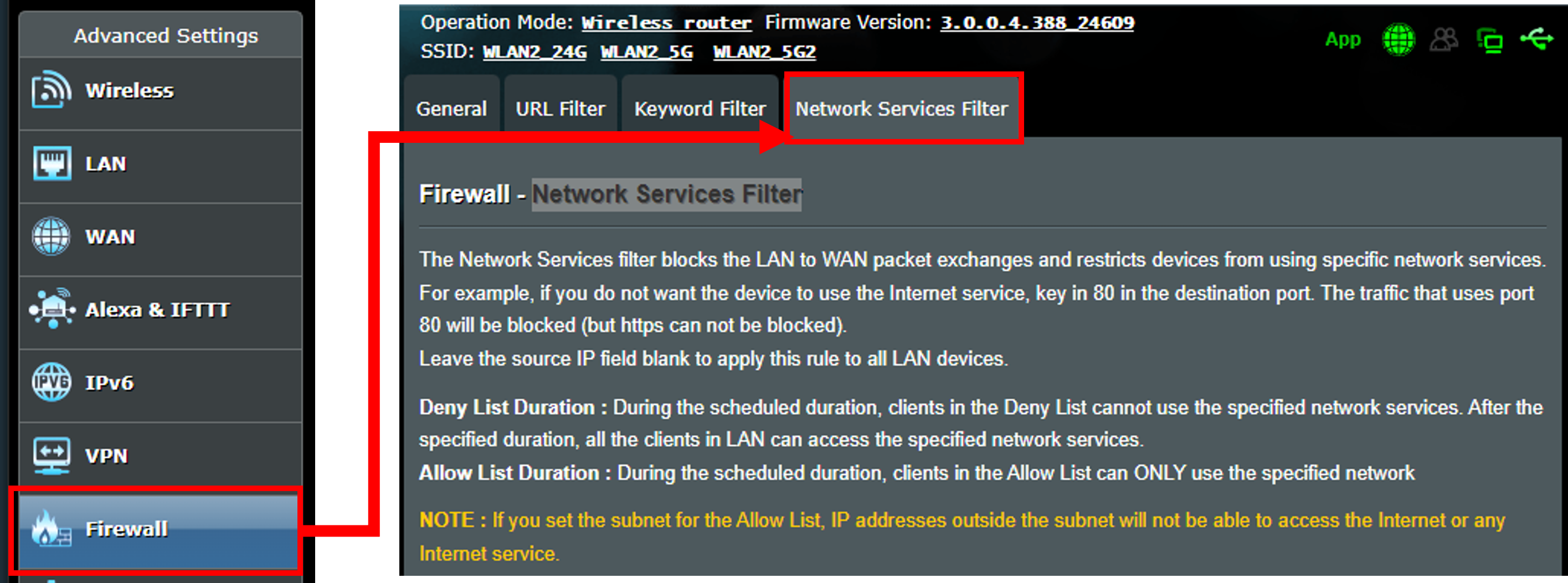
To configure your router's firewall settings, you need to access the router's admin interface. The steps to access the firewall settings vary depending on the router model and manufacturer. Here are some general steps you can follow:
- Connect to your router using an Ethernet cable or wirelessly.
- Open a web browser and type the router's IP address (default is usually
192.168.0.1or192.168.1.1) in the address bar. - Log in with your username and password (default is usually
admin). - Navigate to the firewall settings section.
Configuring Firewall Rules
Once you access the firewall settings, you will see several options to configure. Here are some common settings to consider:
- Block or allow specific IP addresses and ports.
- Configure port forwarding to allow specific applications to access external resources.
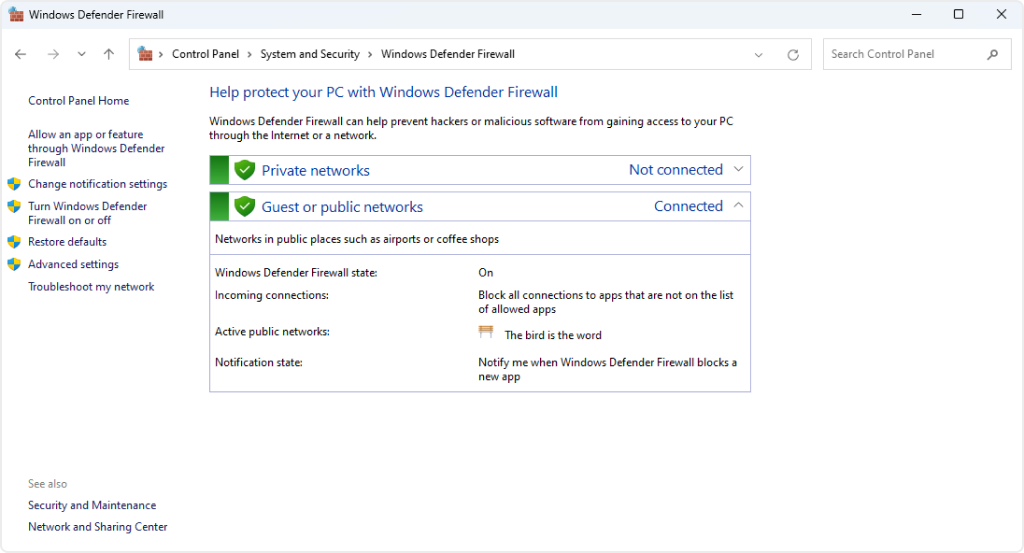
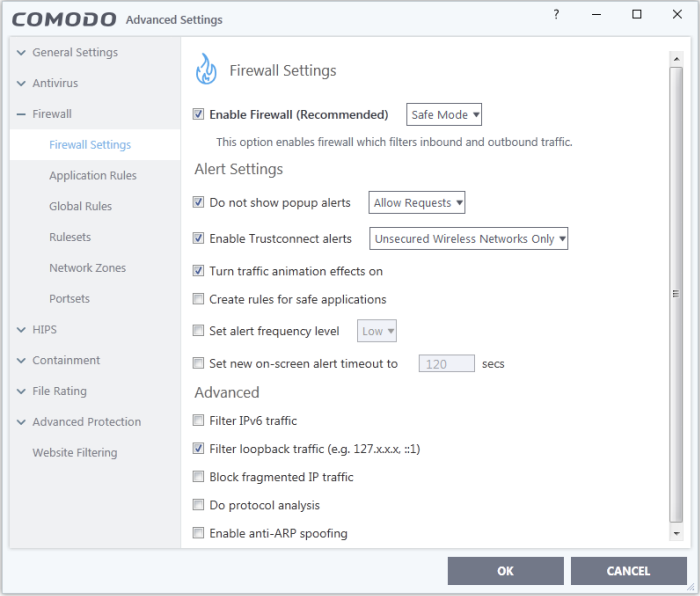
- Enable or disable the firewall.
- Set up VPN settings.
Step-by-Step Guide to Configuring Router Firewall Settings
Here are the steps to follow to configure your router's firewall settings:
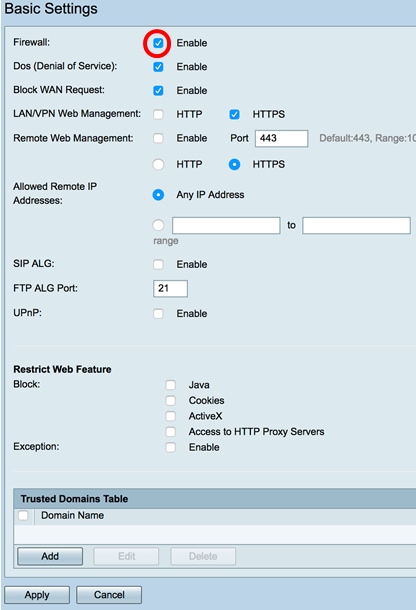
Step 1: Enable the Firewall
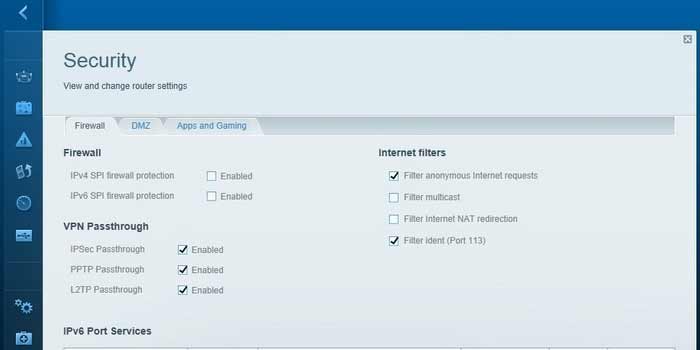
Most routers come with a built-in firewall. Ensure it is enabled in the router's settings. Look for a section labeled "Firewall" or "Security" in the admin interface.
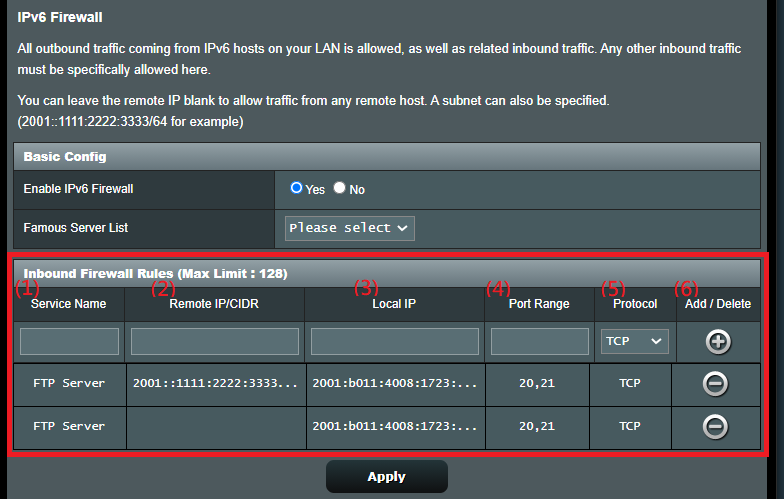
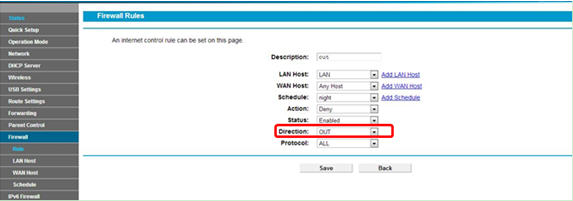
Step 2: Configure Firewall Rules
You can set rules to allow or block specific types of traffic. For example, you can block incoming traffic from specific IP addresses or allow outgoing traffic to specific ports.
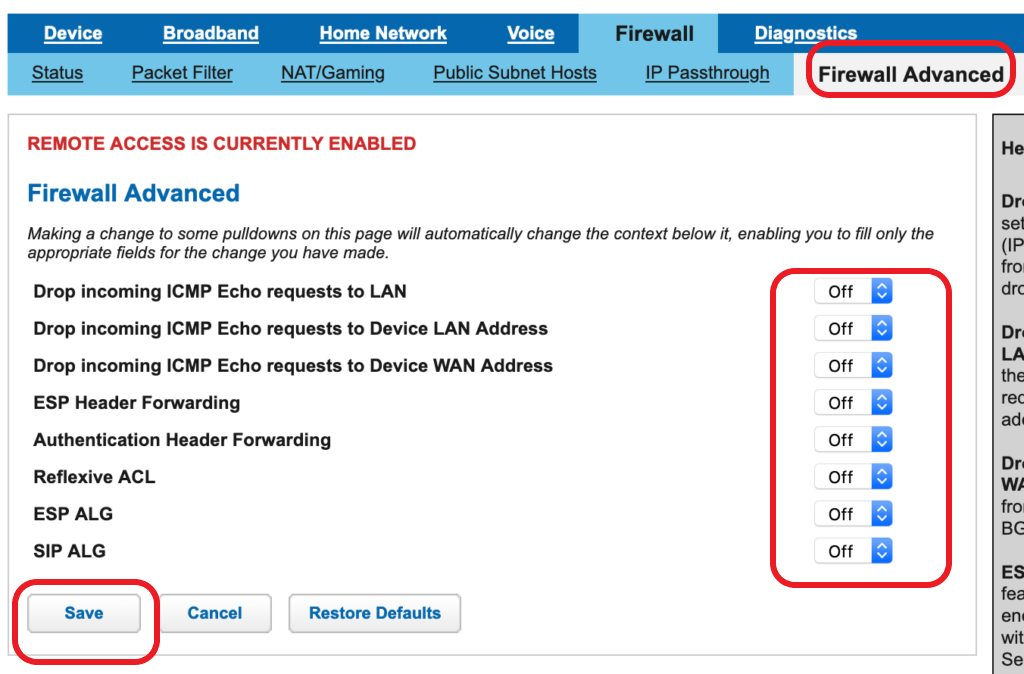
Step 3: Enable Advanced Settings
Some routers offer advanced settings, such as:
- Stateful Packet Inspection (SPI)
- Network Address Translation (NAT)
- URL filtering
Step 4: Configure Port Forwarding
Port forwarding allows specific applications to access external resources. You can configure port forwarding to allow traffic to specific ports.
Step 5: Test Your Firewall Configuration
Once you have configured your firewall settings, test your network to ensure it is secure and functional.
Conclusion
Configuring router firewall settings is an essential part of network security. By following these steps, you can ensure your network is protected from online threats and stay secure online.