Configuring TP-Link G Router for Remote Access: A Comprehensive Guide
In today's digital age, remote access to your home or office network is a necessity. With the help of a TP-Link G router, you can access your files, devices, and services from anywhere in the world. In this article, we'll walk you through the steps of configuring your TP-Link G router for remote access.
Step 1: Enable Remote Management
To enable remote management on your TP-Link G router, follow these steps:
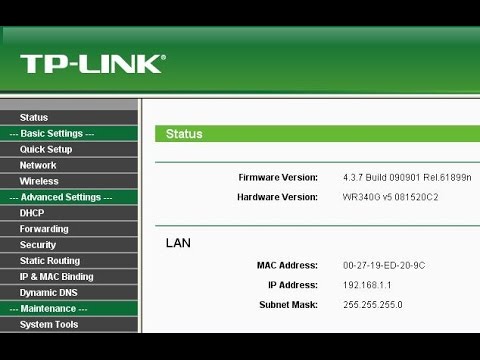
- Login to your router using the default admin username and password.
- Click on the Advanced Settings tab.
- Scroll down to the Administration section and click on Remote Management.
- Enable the Remote Management option and select the devices that are allowed to access your router remotely.
- Save the changes and reboot your router.
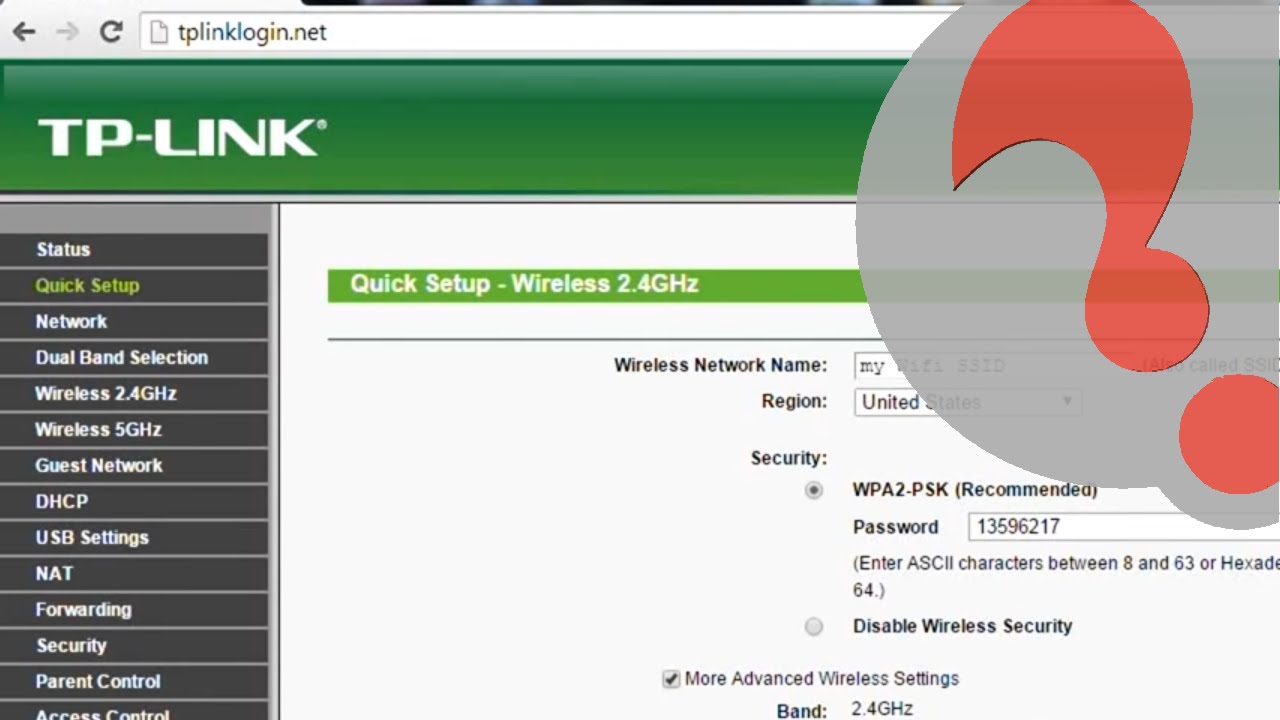
After enabling remote management, you'll be able to access your router's settings from anywhere in the world using the tp-linkwifi.net login page.
Step 2: Change the Administrator Password
For added security, it's essential to change the default administrator password. Here's how to do it:
- Login to your router using the default admin username and password.
- Click on the Administration tab.
- Scroll down to the Management Access section and click on Change Password.
- Enter a new password and confirm it.
- Save the changes and reboot your router.
A strong and unique password will help prevent unauthorized access to your router.
Step 3: Set up VPN on Your Router

If you want to secure your internet traffic, consider setting up a VPN on your TP-Link G router. Here's a brief guide:
- Login to your router using the admin username and password.
- Click on the Advanced Settings tab.
- Scroll down to the VPN section and click on VPN Server.
- Enable the VPN Server option and select the VPN protocol.
- Save the changes and reboot your router.
Setting up a VPN on your router will protect your internet traffic from hackers and surveillance.
Step 4: Configure Port Forwarding
Port forwarding allows you to forward incoming connections to a specific device on your network. Here's how to do it:
- Login to your router using the admin username and password.
- Click on the Advanced Settings tab.
- Scroll down to the NAT (Network Address Translation) section and click on Port Mapping.
- Enter the external and internal port numbers and select the protocol.
- Save the changes and reboot your router.
Port forwarding is essential for online gaming, video conferencing, and other applications that require incoming connections.
Conclusion
In this article, we've covered the essential steps to configure your TP-Link G router for remote access. By following these steps, you'll be able to access your router's settings from anywhere in the world and secure your internet traffic using a VPN. Remember to always change the default administrator password and enable remote management for added security.
With these simple steps, you'll be able to enjoy the benefits of remote access and secure your home or office network. Thank you for reading this comprehensive guide on TP-Link G router setup for remote access.